
Arrange approved payroll figures in a salary-slip layout. Enter the employee, pay period, earnings and deductions, then compare gross pay and take-home pay in the preview. The editor totals the amounts you supply; it does not run payroll or decide statutory deductions. Keep the salary period separate from the payment date, and copy approved values from the payroll statement rather than calculating statutory deductions from a generic example. Check employee identifiers, allowances, deduction labels and the final net amount together. A well-organised payslip makes it easier to explain a monthly change while preserving the distinction between earnings, employer contributions and money actually paid. Start with the salary slip generator and payslip format.
The record and the example used here
A payslip explains how an employee’s pay for a period becomes the amount payable. Gross pay is the sum of earnings for that period. Net pay is gross pay less employee deductions. CTC is the employer’s compensation cost and can contain amounts that are not paid into the employee’s bank account each month.
The walkthrough selects Template 5 and uses Example Studio - SAMPLE, Aarav Sample and employee ID SAMPLE001 for September 2026. It leaves personal payroll identifiers blank, masks the bank account and labels the document ILLUSTRATIVE SAMPLE - NOT EMPLOYER ISSUED.
The amounts are chosen to demonstrate arithmetic: ₹30,000 basic + ₹12,000 HRA + ₹8,000 special allowance = ₹50,000 gross. Deductions of ₹1,800 provident fund, ₹200 professional tax and ₹1,000 loan recovery total ₹3,000. These manually supplied figures are not a statutory calculation or a recommendation for another employee.
How do you read a payslip sample?
A payslip sample is easier to understand when you follow the calculation from earnings to deductions and finally take-home pay. In the worked example, identify the pay period and compare each allowance with the approved figures. A payslip example should explain what each amount represents rather than simply displaying a final number. The sample values in this guide illustrate the editor and must not be used as another employee’s payroll calculation.
Before you start: prepare and reconcile the details
Prepare the approved payroll summary for the specific employee and month. An annual compensation letter may include employer contributions, bonuses or benefits that are not monthly cash earnings. Do not divide the full CTC by twelve and put that result in the net salary field. Identify each earning and deduction before entering amounts.
Reconcile the payslip with the payroll payment separately. Gross earnings minus employee deductions gives the net amount for the period, but a bank transfer may also reflect an adjustment or a separate payment. Document such differences instead of changing basic salary to make the bank amount fit. Protect account numbers and payroll identifiers when sharing samples.
Fields and sample values
| Field | Purpose | Sample value | When it applies |
|---|---|---|---|
| Company Name / Employee Name / Employee ID | Identify employer and employee. | Example Studio - SAMPLE; Aarav Sample; SAMPLE001 | Use approved payroll details for a real record. |
| Designation / Department / Date of Joining | Employment context. | Operations Executive; Customer Operations; 21 August 2023 | Check whether the selected layout displays each field. |
| UAN / PF Number / ESI Number | Payroll identifiers where applicable. | Left blank in this sample | Do not invent identifiers or infer scheme eligibility. |
| Bank / Account Number | Payment destination reference. | Example Bank; XXXX 1234 | Use a masked account in a shared sample. |
| Pay Period / Pay Date | Period earned and payment date. | September 2026; 30 September 2026 | The payment date is not necessarily the period end. |
| Paid Days / Leave Days / Loss of Pay Days | Attendance values printed by supported layouts. | 30 / 0 / 0 | Changing attendance does not automatically prorate the entered salary. |
| Basic Salary / HRA / Special Allowance | Earnings inputs in this example. | ₹30,000 / ₹12,000 / ₹8,000 | Enter the period’s approved amounts; other earnings are zero here. |
| Provident Fund / Professional Tax / Loan | Employee deduction amounts. | ₹1,800 / ₹200 / ₹1,000 | Manual inputs, not universal rates. ESI and Other Deduction are zero here. |
| Note / Authorized Signatory | Explain the record and approval area. | ILLUSTRATIVE SAMPLE - NOT EMPLOYER ISSUED | Text does not substitute for employer issuance or approval. |
Follow the editor step by step
Work through these stages in order. The screenshots show the actual editor running on localhost with illustrative details. Open a screenshot at full size when you need to read a field label; compare the values with your own source record.
1. Select Template 5
Choose Template 5 from Select Template. It shows the company heading, employee details, separate earnings and deduction columns, and a prominent net-salary total.
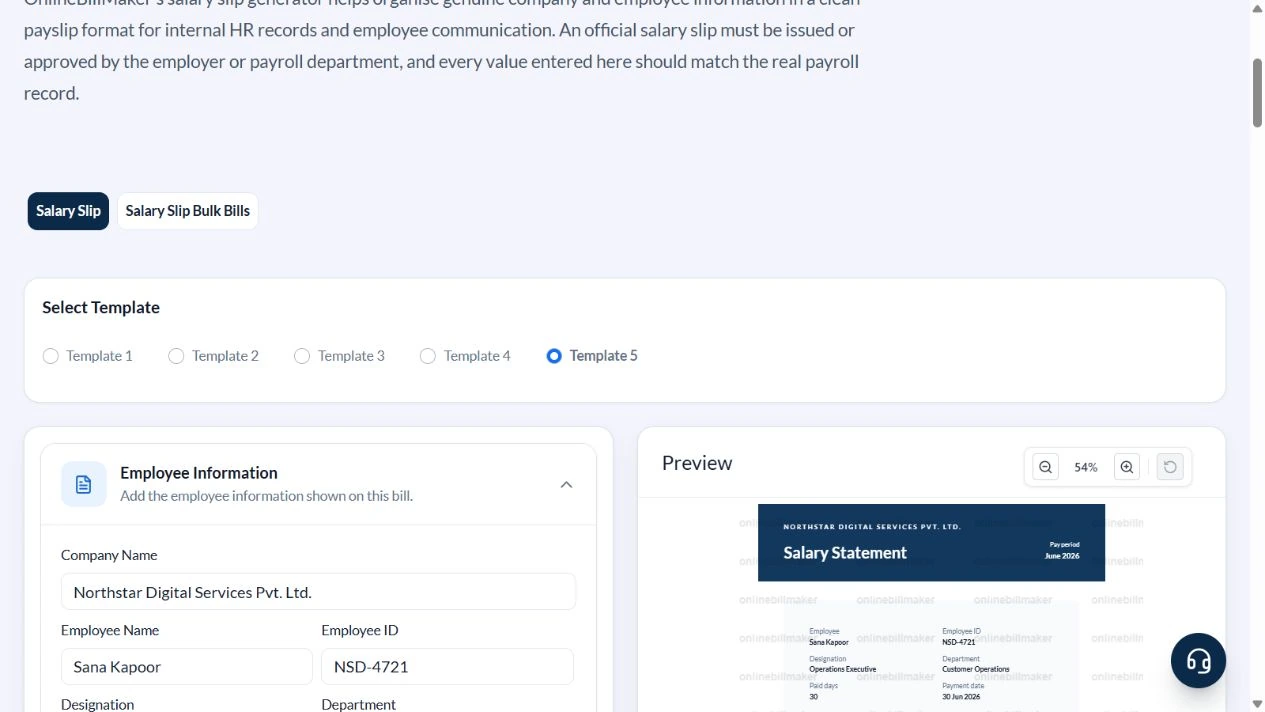
2. Set employee and pay-period details
Under Employee Information, enter Example Studio - SAMPLE, Aarav Sample and SAMPLE001. Under Pay Period & Attendance, enter September 2026 and 30 September 2026 with 30 paid days. Clear the sample payroll identifiers and use a masked account when preparing a demonstration.
3. Enter earnings and deductions
In Earnings, enter Basic Salary 30000, HRA 12000 and Special Allowance 8000; set the remaining earnings to 0. In Deductions, enter Provident Fund 1800, Professional Tax 200 and Loan 1000. Leave ESI and Other Deduction at 0 for this arithmetic example.
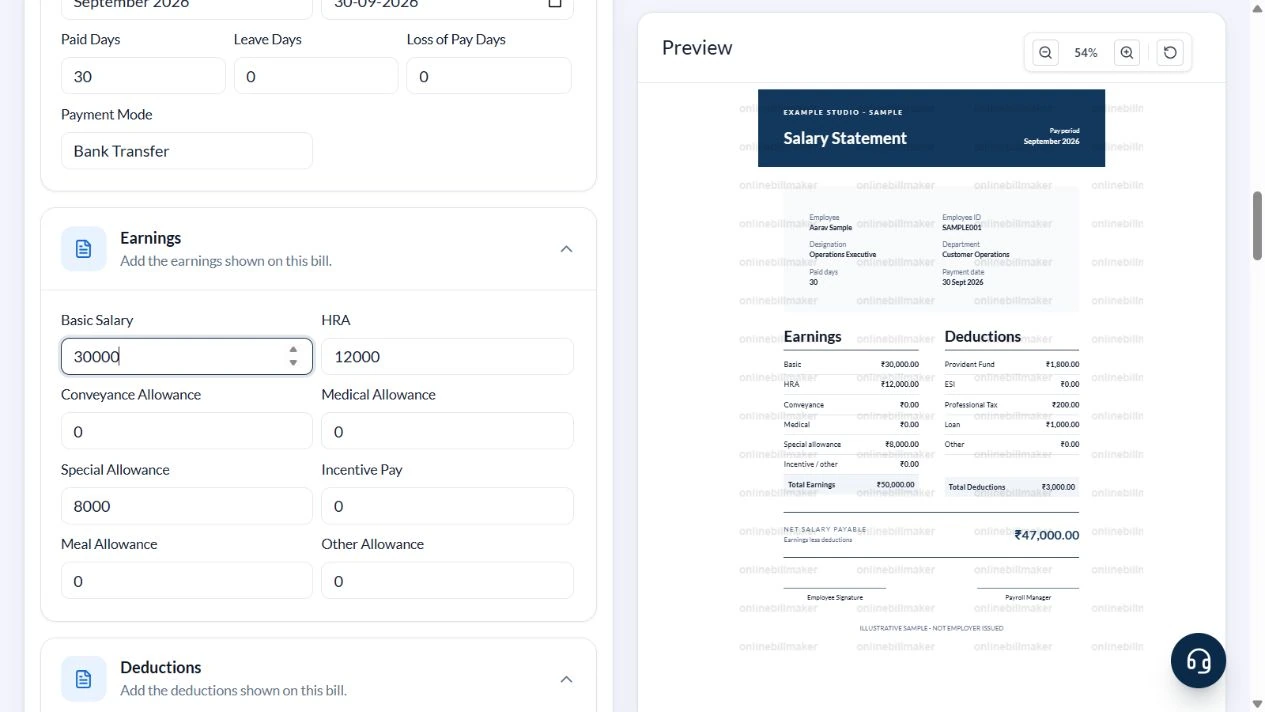
4. Reconcile the statement
Read Total Earnings ₹50,000, Total Deductions ₹3,000 and Net salary payable ₹47,000. Add ILLUSTRATIVE SAMPLE - NOT EMPLOYER ISSUED in Note and confirm it appears. Review the period and employee ID as carefully as the total.
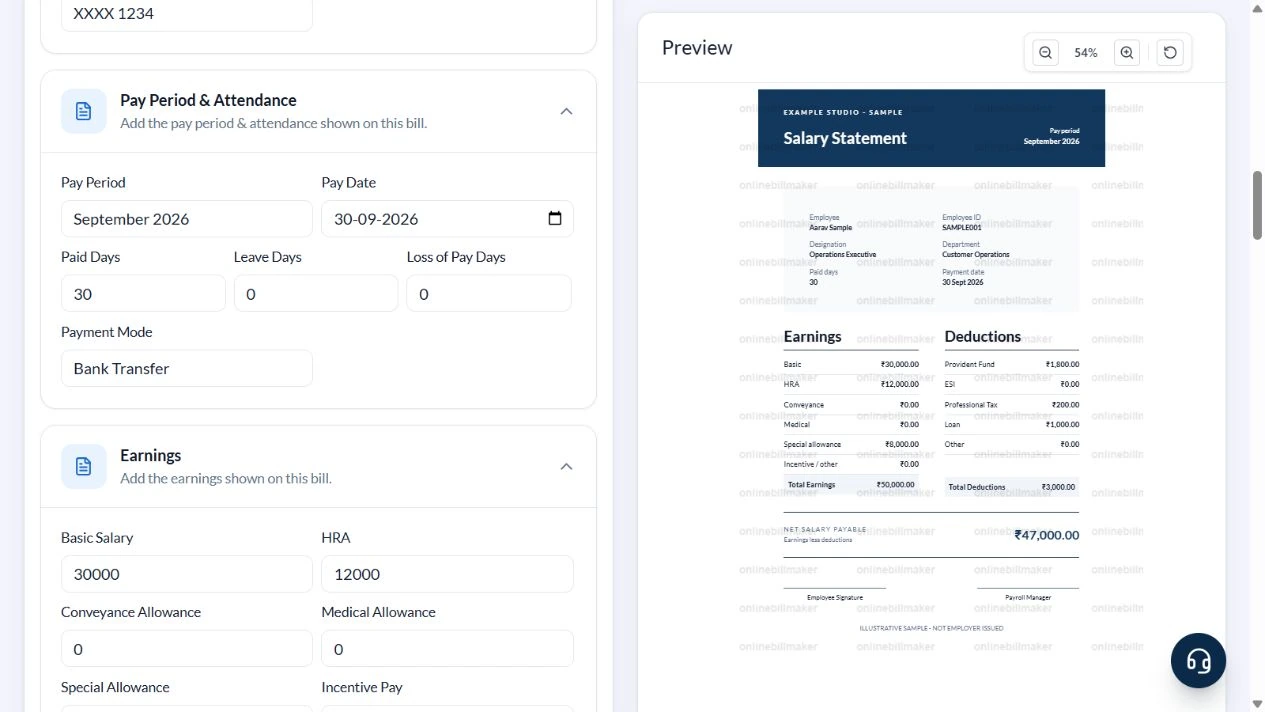
5. Review the available output controls
PDF and image controls are shown below the preview. They are disabled until the user accepts the terms, and downloads also require sign-in and eligible paid access. This walkthrough did not accept terms, purchase access or inspect an exported file.
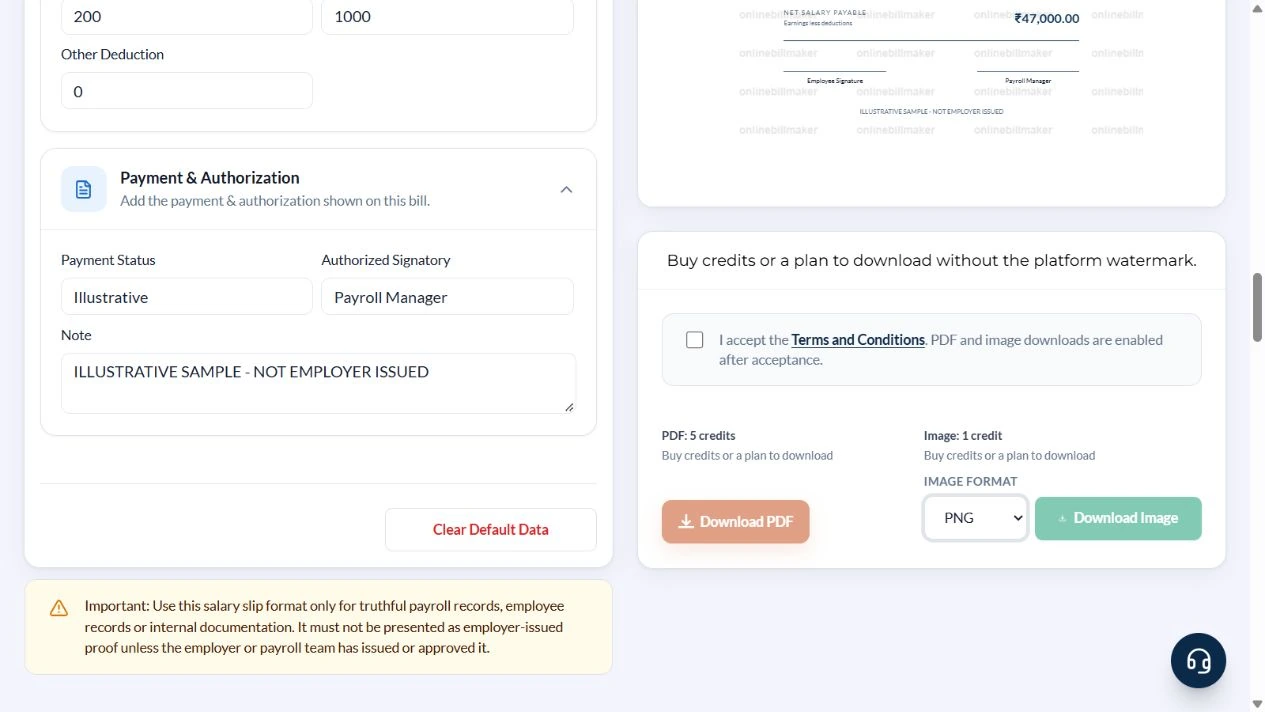
After downloading: inspect the file before sharing
If you complete an eligible download, open the saved PDF or image and compare it with the preview. Check the first and last lines, long addresses, amounts, dates and any acknowledgement area. Confirm that every intended page is present and readable at the size the recipient will use. Keep the source record and payment evidence with the final file so the document can be reconciled later.
If you spot an error, return to the editor and correct the source field before generating the replacement. Use a clear file name with the document reference and period so an older draft is not accidentally sent as the final copy.
Gross ₹50,000 less deductions ₹3,000 = net ₹47,000
| Item | Basis | Result |
|---|---|---|
| Basic salary | Entered earning | ₹30,000 |
| HRA | Entered earning | ₹12,000 |
| Special allowance | Entered earning | ₹8,000 |
| Gross pay | ₹30,000 + ₹12,000 + ₹8,000 | ₹50,000 |
| Employee deductions | ₹1,800 + ₹200 + ₹1,000 | ₹3,000 |
| Net pay | ₹50,000 − ₹3,000 | ₹47,000 |
The preview calculates earnings, deductions and their difference. It does not calculate PF, ESI, professional tax or income-tax withholding from a universal formula. CTC is not an input or an automatic conversion in this workflow. Attendance values do not recalculate the manually entered earnings.
What should a basic salary slip show?
A basic salary slip template can still contain several earnings and deduction lines. Keep their labels precise so basic pay is not confused with total earnings, and a deduction is not mistaken for a reduction in the agreed salary. A payroll slip format should reconcile the printed net amount with the payment record. If attendance changes the figures, calculate that adjustment in the approved payroll process before entering the result here.
How do you check a saved payslip PDF?
Open the salary slip sample PDF at normal viewing size and compare the employee name, period, totals and final lines with the preview. A payslip format PDF is useful for a stable record, but the file should still be checked for clipped text or an old pay date. If you correct a payslip, retain a clear revision reference and use your organisation’s authorised process to issue the replacement to the employee.
Troubleshooting and final checks
- Do not enter annual CTC in Basic Salary or treat it as monthly gross pay.
- Reconcile every non-zero allowance; old sample values can otherwise inflate gross pay.
- Employee deductions and employer contributions are different amounts. Do not deduct the employer’s share again.
- There is no dedicated TDS field in this layout. If using Other Deduction, keep an approved, clear explanation and check that the chosen layout presents the required breakup.
- Payment Status is entered text; it does not confirm a bank credit.
Editing and previewing are free. Downloads require sign-in and either an active plan or enough purchased credits: 5 credits for a PDF and 1 credit for an image. There are no free download credits. Free users see the platform watermark in the preview. Signed-in users with a credit balance or an active plan can choose a download format and preview without the watermark. Compare download credits and plans.
Use employer-approved figures for actual payroll records. A sample prepared in this editor is not employer-issued proof by itself.