Create a readable record of a fuel purchase with station details, litres, price per litre and vehicle information. Choose a layout, enter the purchase details and check the calculated amount in the preview. Use the same litres and rate as the original petrol or diesel purchase, retain the outlet address and add a payment reference that can be matched later. The live preview helps you compare the vehicle, purchase date and total in one place. For expense reporting, keep the station receipt and payment evidence alongside the formatted copy. Start with the fuel bill generator for petrol and diesel receipts.
The record and the example used here
For a petrol or diesel receipt, start with the quantity and unit price on the original purchase record. The main check is simple: litres multiplied by rupees per litre must reconcile to the amount paid. The generator arranges those details; it does not retrieve a transaction from a fuel station.
The example below uses Sample Fuel Station, Aarav Sample, vehicle MH12AB1234 and receipt SAMPLE-FUEL-001. It records 20 litres at ₹100 per litre, paid by UPI, on 21 June 2026. These are illustrative details entered in the local editor, not evidence of a real purchase.
The selector offers nine fuel layouts, including different receipt proportions and charging layouts. The demonstrated full-page receipt shows the customer and station in separate blocks. Provider names identify independent layout options; they do not indicate an official connection or validate a receipt.
What belongs in a petrol invoice format?
A petrol invoice format should let another person retrace the purchase without guessing. Compare the station name, bill reference, time, vehicle and fuel type with the original. Then check quantity multiplied by rate against the stated amount. The same approach works for a petrol bunk bill format: the local name for the outlet does not change the need for consistent figures. Keep the source copy alongside the version you prepare.
Before you start: prepare and reconcile the details
Before entering a fuel purchase, identify the unit shown on the source. Petrol and diesel are commonly recorded in litres, while CNG and charging sessions can use different units. Choose a matching layout before copying a number. A quantity of 20 without a unit is ambiguous, even if the final amount happens to look reasonable.
When a total differs by a small amount, compare the full precision of the quantity and unit price first. Rounding each input early can change their product. If the original transaction includes another charge, establish what it is instead of silently increasing the fuel rate. Keep one receipt reference per purchase so several fills on the same day do not become duplicate claims.
Fields and sample values
| Field | Purpose | Sample value | When it applies |
|---|---|---|---|
| Fuel Station Name / Address | Identify the issuer and location shown on the purchase record. | Sample Fuel Station; Example Road, Pune, Maharashtra | Use the actual outlet, not just the fuel brand. |
| Invoice Number | Keep a reference that can be matched to the payment. | SAMPLE-FUEL-001 | An auto-generated number is a local reference, not a station lookup. |
| Fuel Rate | Price for one litre in the chosen currency. | ₹100.00 per litre | For the petrol/diesel layout demonstrated here. |
| Quantity (L) | Volume dispensed; keep decimals from the source receipt. | 20.00 L | Do not enter an amount in rupees in this field. |
| Total Amount | Calculated purchase amount from rate and quantity. | ₹2,000.00 | Read-only for fuel layouts 1–7; correct rate or quantity if it is wrong. |
| Fuel Bill Date / Time | Date and time of the purchase. | 21 June 2026, 14:18:55 | Check the displayed preview after changing a date. |
| Customer Name / Vehicle Number | Connect the receipt to the vehicle expense file. | Aarav Sample; MH12AB1234 | Use only information needed for the record. |
| Vehicle Type / Payment Method | Select the fuel category and how the purchase was paid. | Petrol; UPI | The payment label does not verify or collect a payment. |
Follow the editor step by step
Work through these stages in order. The screenshots show the actual editor running on localhost with illustrative details. Open a screenshot at full size when you need to read a field label; compare the values with your own source record.
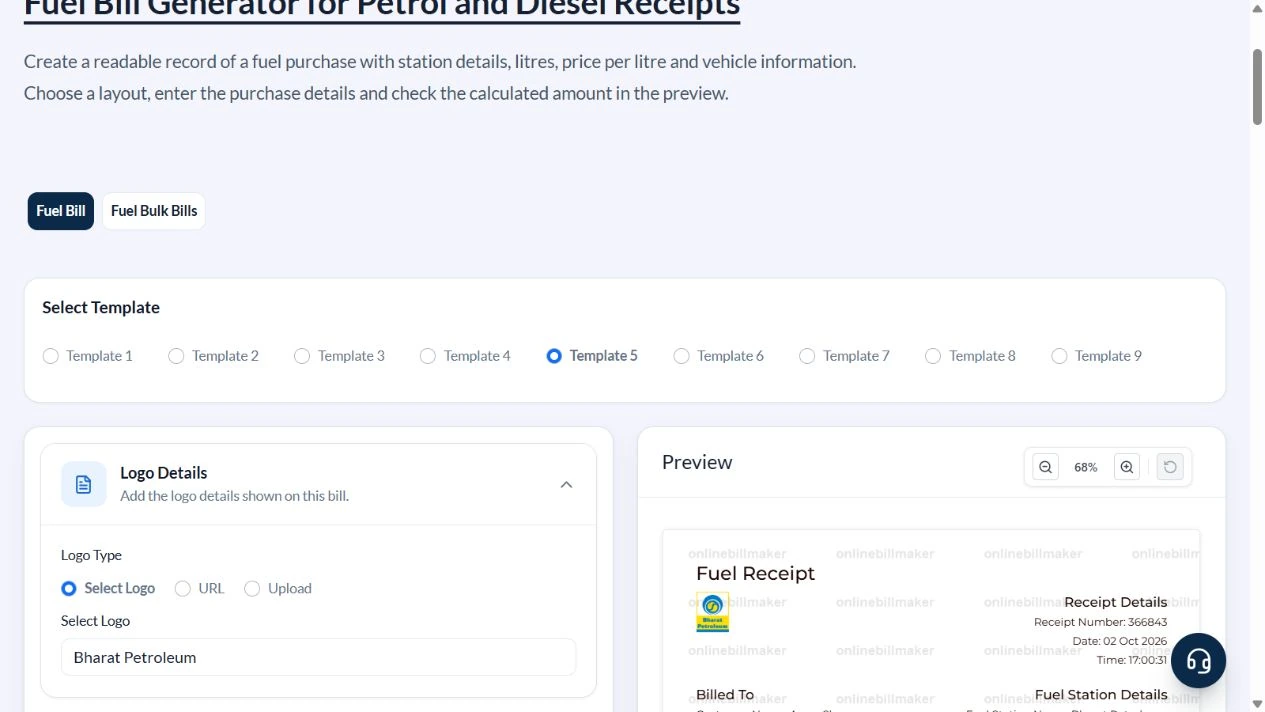
1. Select the fuel receipt layout
Open Fuel Bill and compare the options under Select Template. Choose Template 5 for the full-page receipt used in this example, or a thermal layout if that better matches the source. Set the layout before completing the fields.
2. Enter the station and payment reference
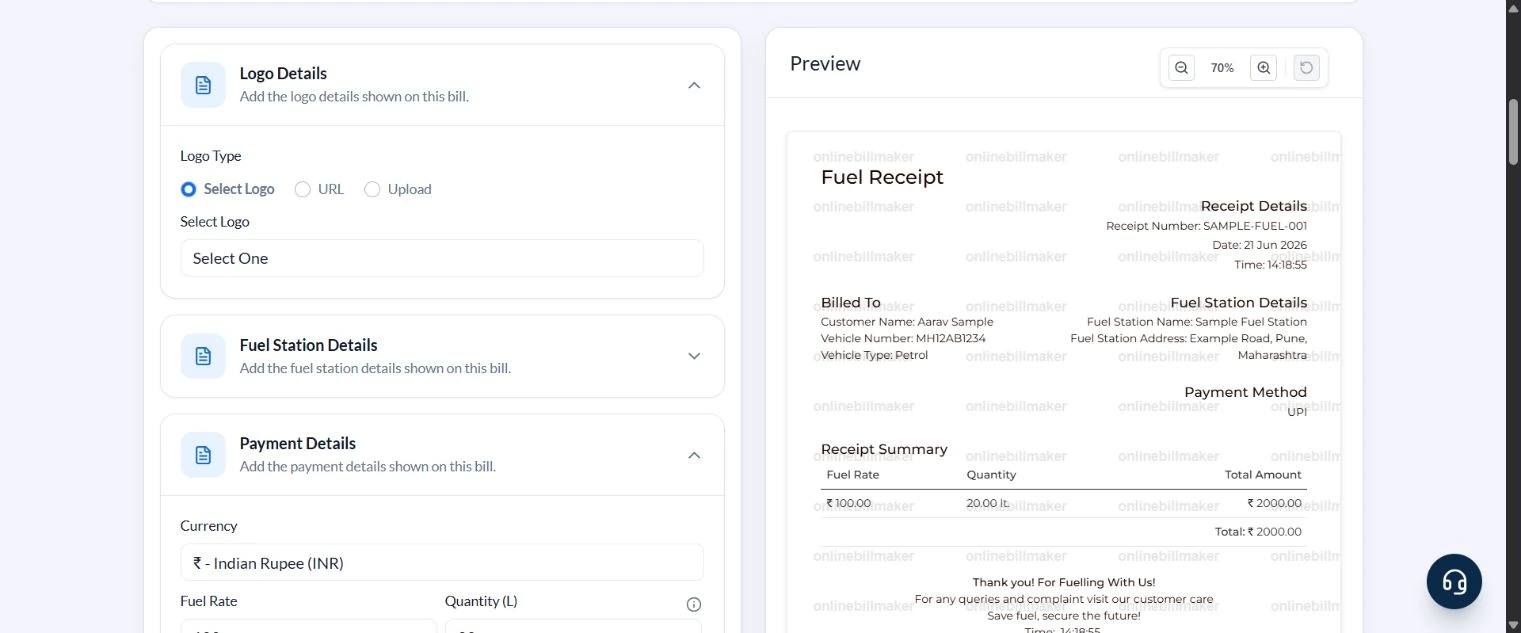
Expand Fuel Station Details. Enter Sample Fuel Station, its illustrative address and SAMPLE-FUEL-001, then choose UPI under Payment Method. Logo Details can be left without a logo; a brand image is not proof of who issued the record.
3. Enter litres and unit price
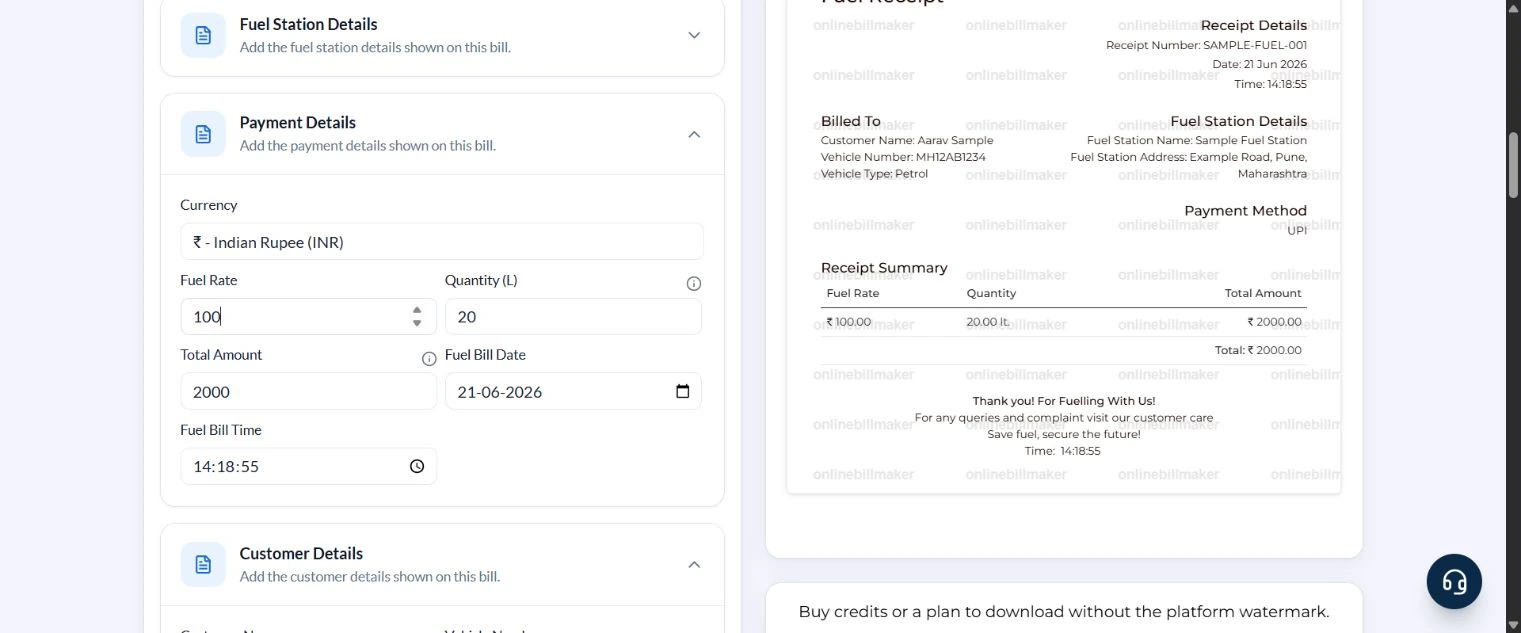
Expand Payment Details. Keep Indian Rupee selected, enter 100 in Fuel Rate and 20 in Quantity (L). Total Amount becomes 2000. Review Fuel Bill Date and Fuel Bill Time in both the input and preview.
4. Check the completed receipt
Expand Customer Details and enter Aarav Sample, MH12AB1234 and Petrol. Read the preview from receipt reference through the total. Verify the station address, date, vehicle and UPI label as well as the arithmetic.
5. Choose PDF or image download
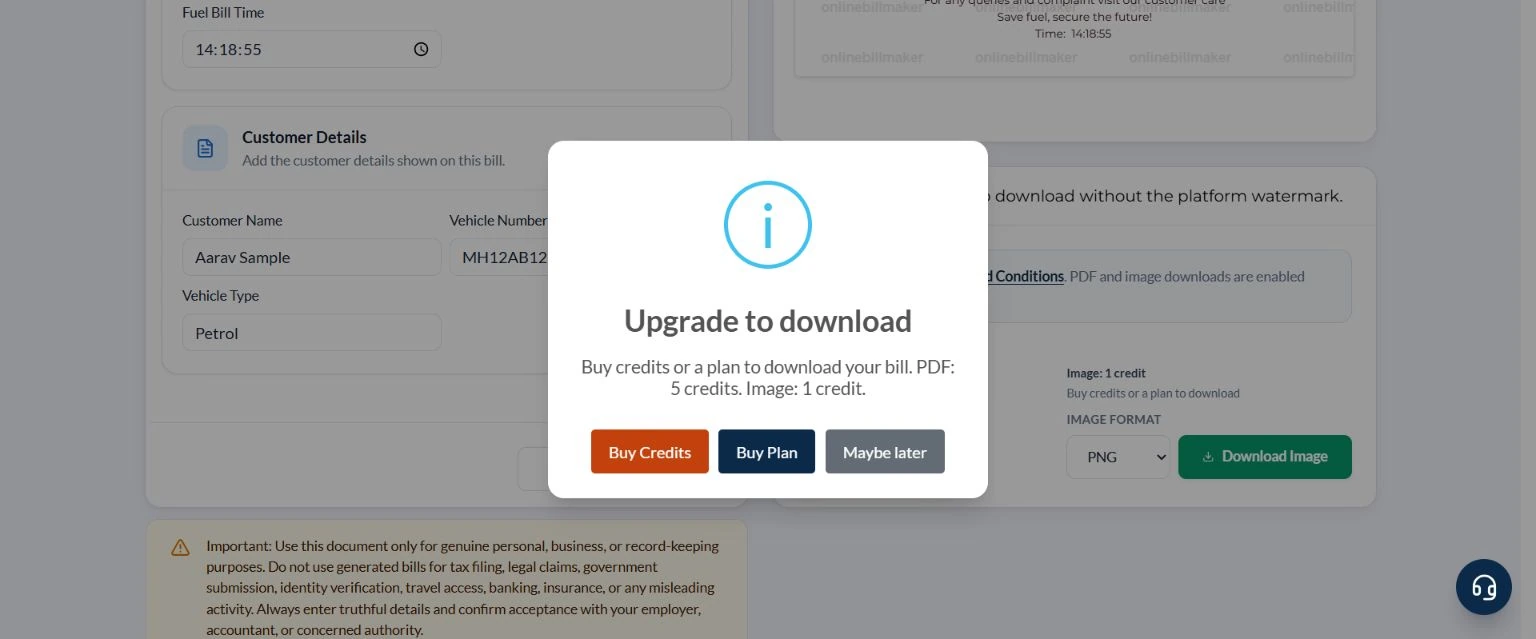
Review the terms and current download cost. Choose Download PDF for a document file, or select PNG, JPG or WEBP before Download Image. Without paid access, Upgrade to download offers Buy Credits and Buy Plan. This walkthrough reached that prompt; it did not purchase access or produce a downloaded file.
After downloading: inspect the file before sharing
If you complete an eligible download, open the saved PDF or image and compare it with the preview. Check the first and last lines, long addresses, amounts, dates and any acknowledgement area. Confirm that every intended page is present and readable at the size the recipient will use. Keep the source record and payment evidence with the final file so the document can be reconciled later.
If you spot an error, return to the editor and correct the source field before generating the replacement. Use a clear file name with the document reference and period so an older draft is not accidentally sent as the final copy.
Worked fuel example: 20 litres for ₹2,000
| Item | Basis | Result |
|---|---|---|
| Fuel | Petrol | 20.00 L |
| Unit price | ₹100 for 1 litre | ₹100.00/L |
| Purchase amount | 20.00 × ₹100.00 | ₹2,000.00 |
| Payment | UPI; no separate adjustment in this example | ₹2,000.00 |
If the source receipt says ₹2,010, do not overwrite the total to hide the difference. Check the entered unit price, volume and rounding against the original. The demonstrated fuel layout calculates the amount automatically. Charging layouts use different units and fields; do not apply a litres calculation to kWh.
How do you complete a blank fuel receipt?
When you prepare a petrol bill online, begin with the receipt rather than a remembered total. In a blank petrol bill format, empty fields are preferable to invented transaction references. If you know the amount and rate, divide to check the implied litres, then compare the rounding with the actual receipt. Do not alter the purchase date or quantity to make the total fit an allowance. Correct an entry only when the source evidence supports the correction.
Which copy should accompany a reimbursement request?
A petrol reimbursement bill format helps organise an expense; acceptance depends on the recipient’s requirements and original evidence. Check whether the employer needs the station-issued slip, a vehicle reference, travel purpose or payment confirmation. For a petrol bill format download, keep the PDF legible at normal print size and name it with the purchase date. An editable draft is useful for corrections, while the final submitted copy should remain consistent with the supporting records.
Troubleshooting and final checks
- A total mismatch usually starts with the rate, volume or decimal precision. Check each against the purchase record before rounding.
- Vehicle Type in this layout means Petrol, Diesel, CNG or Electric. It is not a car-model field.
- An invoice-number generator creates a reference locally; it does not check a pump database.
- If a field is absent from the preview, confirm that the selected layout supports it before changing layouts.
- A screenshot of a preview is not the same as a paid, watermark-free download.
Editing and previewing are free. Downloads require sign-in and either an active plan or enough purchased credits: 5 credits for a PDF and 1 credit for an image. There are no free download credits. Free users see the platform watermark in the preview. Signed-in users with a credit balance or an active plan can choose a download format and preview without the watermark. Compare download credits and plans.
This is an independent record-making tool. It does not issue or verify fuel-station receipts, and a generated copy does not replace the original where a recipient requires it.