Create a book purchase record that identifies the title and edition as well as the amount. Check the quantity and net price per copy so similar editions are not combined by mistake. Include the publisher and a useful description for the particular edition or format being purchased. Enter the quantity and price on the same basis, retain the seller’s receipt reference and review the buyer and payment details. A precise book receipt helps distinguish an individual title from a bundled set and avoids confusion when similarly named editions have different prices. Start with the book invoice generator for title and quantity records.
The record and the example used here
Template 1 is a compact receipt for one title and a quantity of copies. It is useful for a simple purchase record; an order containing several different titles needs a layout that can distinguish each item.
The example uses the fictional title A Guide to Sample Gardens by Riya Sample, Example Press, 2026 print edition. Aarav Sample buys three copies on 18 August 2026 under reference SAMPLE-BOOK-001. Each ₹300 list price has an agreed ₹30 reduction, giving ₹270 per copy and ₹810 total.
There are no dedicated author, ISBN or discount fields in the demonstrated layout. Description holds edition and pricing context. A fictional teaching title has no ISBN; do not invent one to make the example look authentic.
What should a book invoice example explain?
A book invoice example should identify the titles being purchased and the basis of each amount. Compare the publisher and edition description with the actual order, then check the quantity. A textbook purchase receipt can look correct while referring to the wrong edition, so do not review only the final total. The sample below demonstrates the editor with illustrative book details.
Before you start: prepare and reconcile the details
Check the title page or purchase listing for the edition and format. A paperback, hardback, workbook and boxed set may share a title but have different prices. Use the description to identify the purchased version, and distinguish the number of copies from the number of books inside one set.
Establish whether Book Price is the final price per copy. If the seller already applied a reduction, do not deduct it again elsewhere. The demonstrated layout centres on a single title; do not cram several separately priced books into a description that has only one quantity and rate. Use a suitable itemised invoice when the purchase needs multiple lines.
Fields and sample values
| Field | Purpose | Sample value | When it applies |
|---|---|---|---|
| Name of Book | Identify the exact title. | A Guide to Sample Gardens | Separate different editions or formats. |
| Publisher | Name the publisher of the edition. | Example Press | This is not a substitute for seller details when those are required. |
| Description | Add author, edition and price explanation. | Riya Sample; 2026 print edition; ₹30 per-copy reduction | Put a verified ISBN here when useful for a real order. |
| Quantity | Number of identical copies. | 3 | This layout has one title, not a multi-title item table. |
| Book Price | Final price for one copy. | ₹270 | Discount arithmetic is manual; the field multiplies by quantity. |
| Customer Name / Receipt No / Choose Date | Identify buyer and purchase record. | Aarav Sample; SAMPLE-BOOK-001; 18 August 2026 | Use the actual source reference when available. |
| Payment Method / Currency | Label how the purchase was paid. | UPI; INR | A payment label does not confirm a transfer. |
Follow the editor step by step
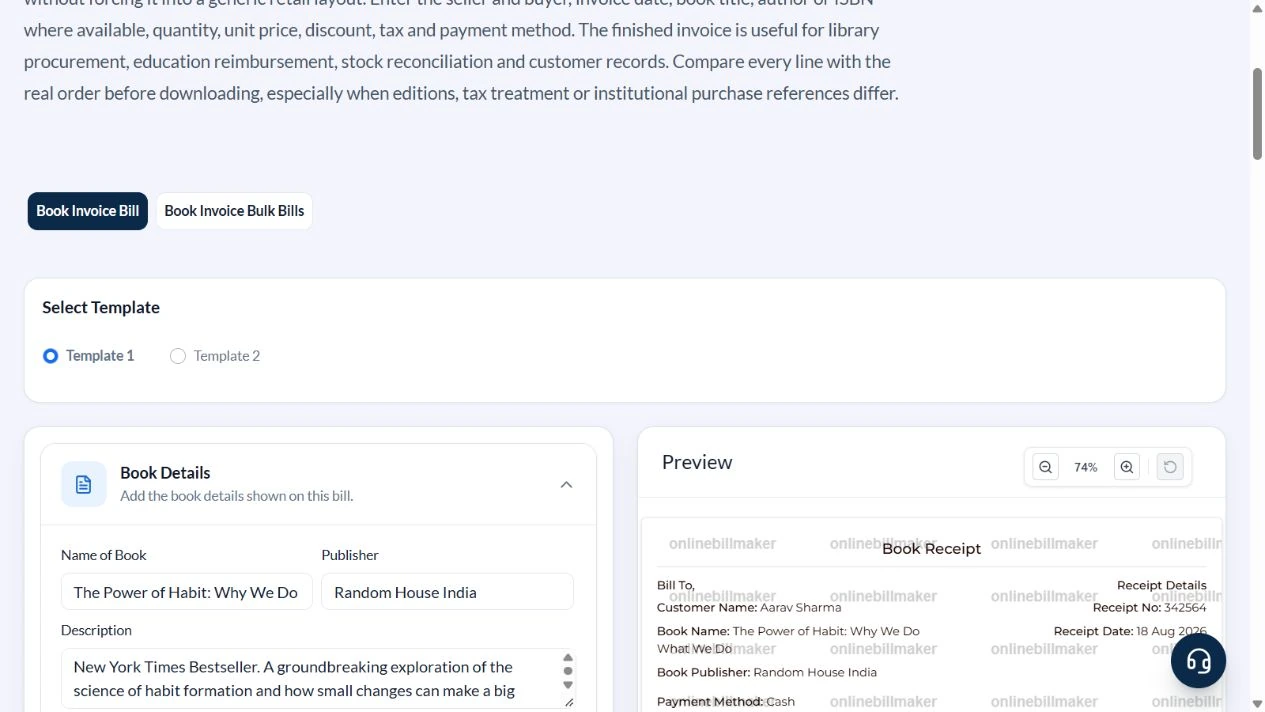
Work through these stages in order. The screenshots show the actual editor running on localhost with illustrative details. Open a screenshot at full size when you need to read a field label; compare the values with your own source record.
1. Select the single-title receipt
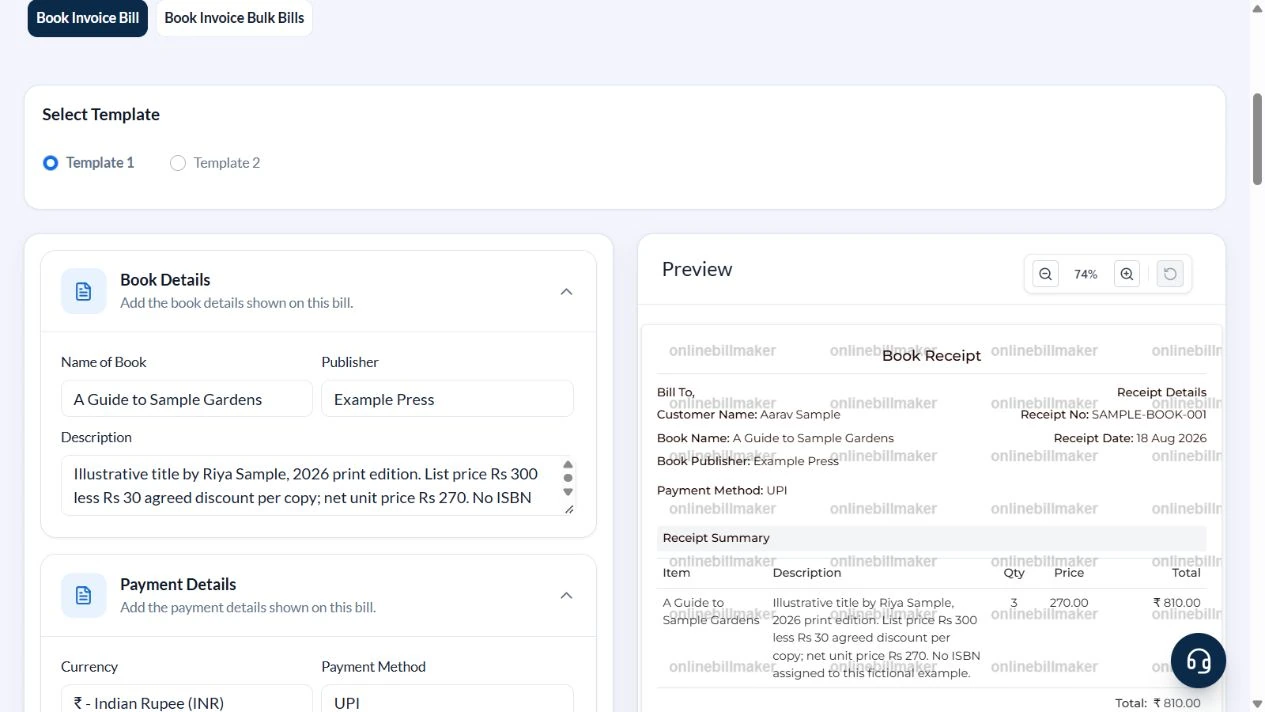
Open Book Invoice and select Template 1 from the two options. Book Details is open first; Payment Details and Customer Details complete this compact workflow.
2. Identify the edition and explain the price
Enter A Guide to Sample Gardens and Example Press. In Description state that this is an illustrative title by Riya Sample, 2026 print edition, with list price Rs 300 less Rs 30 per copy. Explain that no ISBN is assigned to the fictional example.
3. Enter net price and copy count
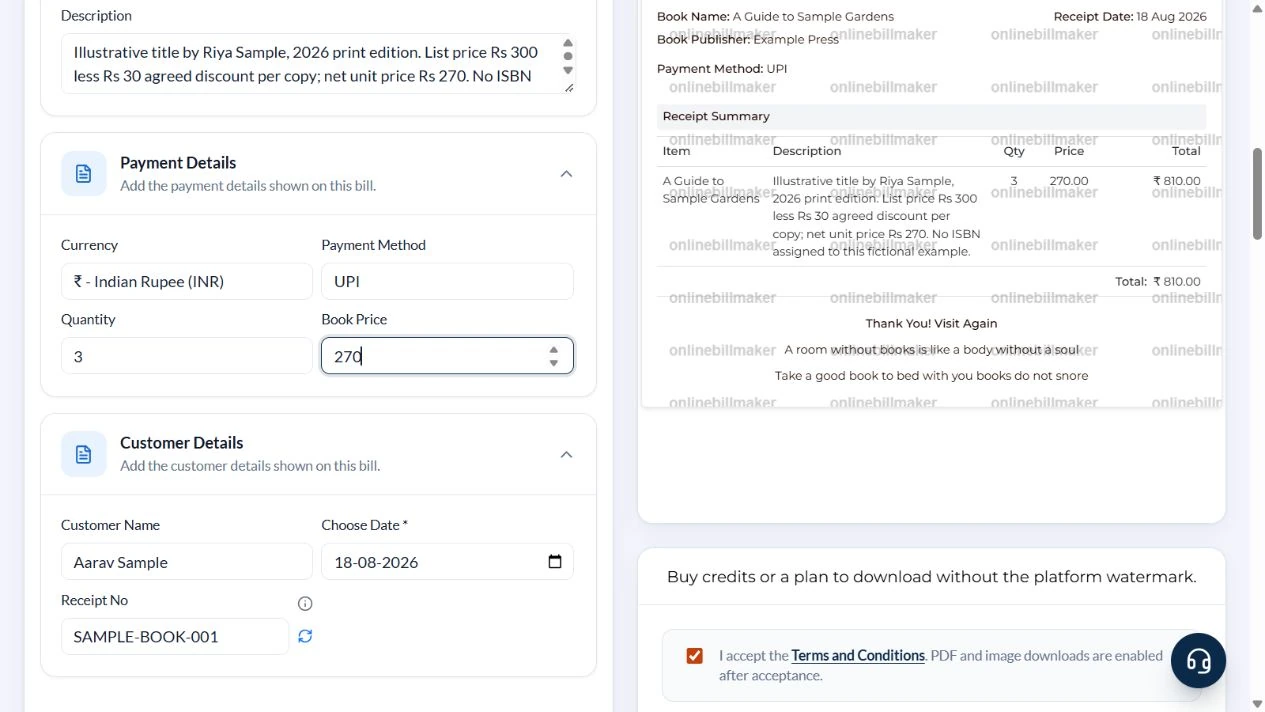
In Payment Details select UPI and INR, set Quantity to 3 and Book Price to 270. In Customer Details use Aarav Sample, receipt SAMPLE-BOOK-001 and 18 August 2026.
4. Check the title and ₹810 total
The preview should show one line for three copies at ₹270, total ₹810, with the full edition and discount explanation. Check the receipt number and date as well as the arithmetic.
5. Review the output options
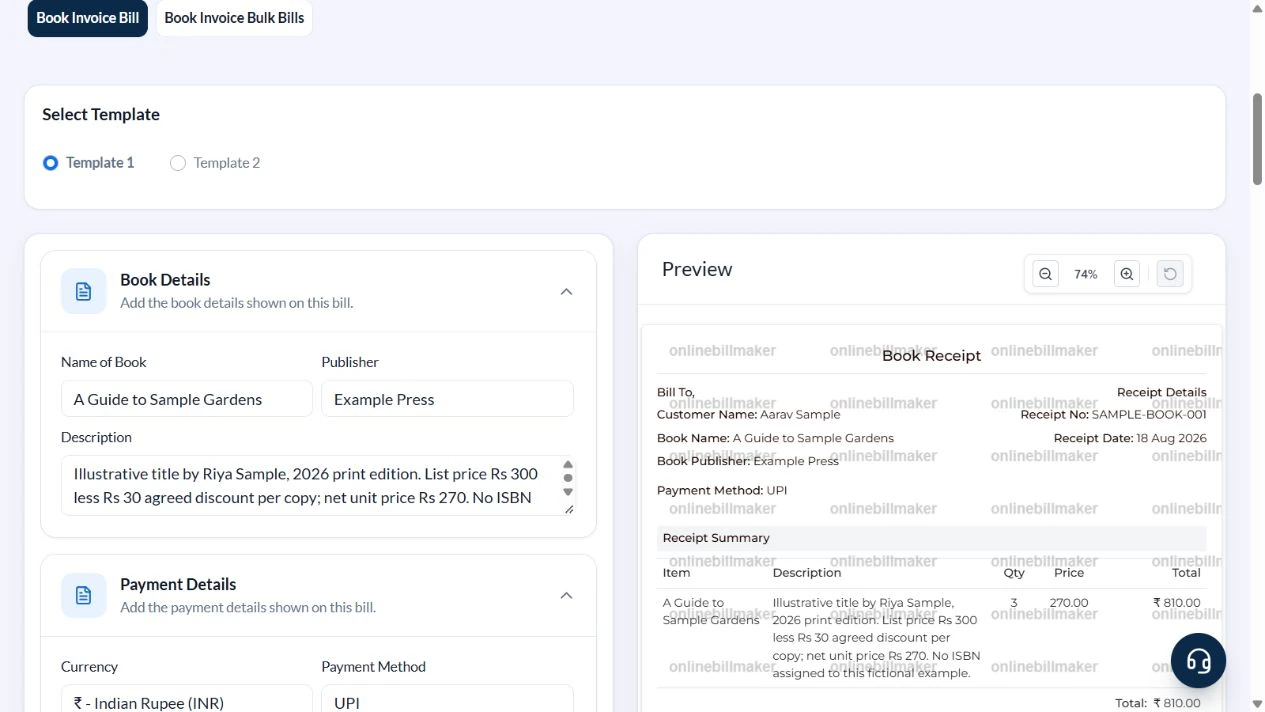
PDF and image downloads show their current credit costs. This walkthrough captured the controls and did not purchase access or inspect an exported file.
After downloading: inspect the file before sharing
If you complete an eligible download, open the saved PDF or image and compare it with the preview. Check the first and last lines, long addresses, amounts, dates and any acknowledgement area. Confirm that every intended page is present and readable at the size the recipient will use. Keep the source record and payment evidence with the final file so the document can be reconciled later.
If you spot an error, return to the editor and correct the source field before generating the replacement. Use a clear file name with the document reference and period so an older draft is not accidentally sent as the final copy.
Three copies after a ₹30 per-copy discount
| Item | Basis | Result |
|---|---|---|
| List price | Per copy | ₹300 |
| Agreed reduction | Per copy; manually calculated | −₹30 |
| Book Price | ₹300 − ₹30 | ₹270 |
| Quantity | Three identical copies | 3 |
| Receipt total | 3 × ₹270 | ₹810 |
| Discount across the order | 3 × ₹30; explanatory calculation | ₹90 |
The generator multiplies the entered Book Price by Quantity; it does not apply the discount from the description. Entering ₹810 as Book Price would produce ₹2,430 for three copies. No tax treatment is inferred from this arithmetic example.
How do you calculate the line amounts?
For a book bill calculation, multiply the number of copies by the price for that line and then compare the sum with the source bill. A book invoice with quantity and price should state clearly whether the amount is per copy or per set. Keep a publisher invoice reference separate from the bookstore receipt number if your source documents contain both; do not force unrelated references into one field.
What should you check before downloading?
When learning how to create a book invoice, finish by reading the longest title and the last row in the preview. A book receipt PDF download should show the intended customer, purchase date and final amount. Keep your original seller evidence with the prepared copy, and review any institutional claim requirements separately. An editable book receipt is useful for correcting the layout but does not establish a verified purchase.
Troubleshooting and final checks
- Do not combine hardback, paperback or different editions under an ambiguous title.
- Enter the per-copy price rather than the complete order amount.
- Explain whether a discount is per copy or for the whole order.
- Use a different suitable invoice layout if seller particulars, separate tax rows or several titles are required.
Editing and previewing are free. Downloads require sign-in and either an active plan or enough purchased credits: 5 credits for a PDF and 1 credit for an image. There are no free download credits. Free users see the platform watermark in the preview. Signed-in users with a credit balance or an active plan can choose a download format and preview without the watermark. Compare download credits and plans.
This record does not validate ISBNs, maintain stock or retrieve a bookstore order.