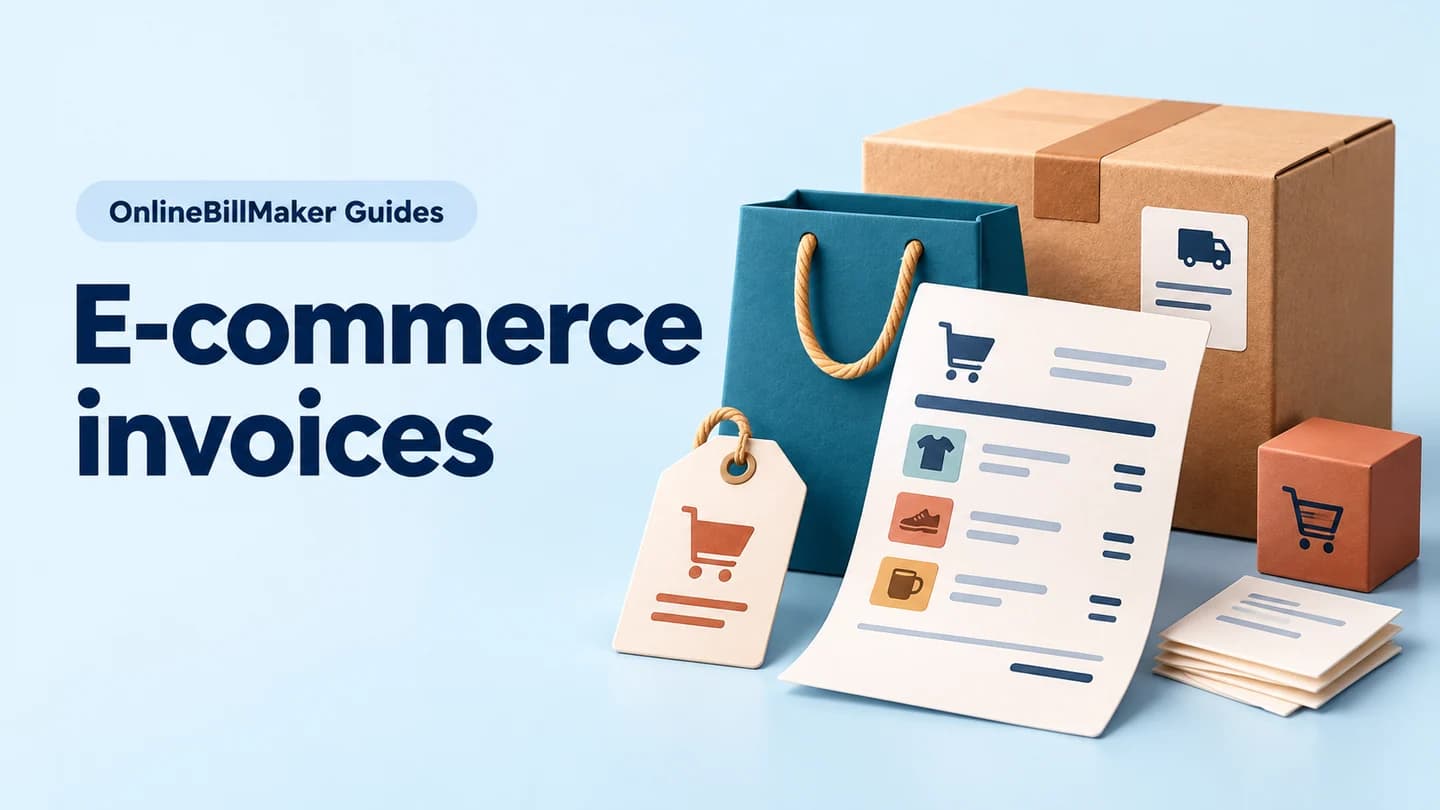
Connect an online order to its seller, customer and item charges. Choose a layout, enter the invoice and order references separately, and reconcile the item table before downloading. Fields and tax calculations differ between layouts. Identify the seller and delivery destination accurately, include product variants and quantities, and distinguish a discount from a shipping charge. Check whether prices include tax before entering them. The preview helps connect the order to its invoice, but a marketplace logo, order number or payment label does not import or verify the underlying sale. Start with the e-commerce invoice generator.
The record and the example used here
An order confirmation records what the customer ordered. An invoice itemises what the seller bills. Keep both references when available so that a return, payment or customer question can be traced to the right transaction.
This walkthrough uses Template 8, which has combined Bill to / Ship to details and separate Bill From and Ship From blocks. It takes tax-inclusive item prices and a currency discount for the whole line. Other layouts use different fields and may calculate tax on exclusive prices; do not transfer this example blindly between layouts.
Example Store - SAMPLE supplies Aarav Sample in Pune. Invoice SAMPLE-INV-001 and order SAMPLE-ORDER-001 are dated 15 September 2026. The example leaves GSTIN and HSN/SAC blank and uses 18% only to demonstrate arithmetic. It is not a classified product, a valid tax invoice or a recommended tax rate.
How do you read an ecommerce invoice example?
An ecommerce invoice example is easier to review when the order number and invoice number remain distinct. Match the customer, seller and product lines with the source order, then check the packet or shipment reference. An online purchase receipt may relate to one shipment within a larger order, so confirm that the items and quantities belong to this copy rather than assuming every order line is included.
Before you start: prepare and reconcile the details
An order number, invoice number and shipment reference serve different purposes. An order may be fulfilled in multiple parcels or invoices, so retain the distinct references supplied by the seller. Check whether the invoice covers all ordered items or only the parcel being dispatched. Use the actual billed quantity, not an unfulfilled order quantity.
Read each product row with its variant and unit price. If the product price is already net of a discount, entering the same reduction again understates the bill. Check shipping treatment against the selected layout and source document, and compare the final tax breakup with the seller’s approved invoice rather than assuming every template calculates identically.
Fields and sample values
| Field | Purpose | Sample value | When it applies |
|---|---|---|---|
| Invoice Number / Order Number / Packet ID | Separate billing, order and parcel references. | SAMPLE-INV-001 / SAMPLE-ORDER-001 / SAMPLE001 | Local references do not retrieve marketplace data. |
| Invoice Date / Order Date | When billed and when ordered. | 15 September 2026 for both | They may differ in a real order. |
| Bill To Name / Bill To Address | Customer billing and delivery block in Template 8. | Aarav Sample; Flat 12, Example Residency, Pune | This layout shares one Bill to / Ship to block. Choose another layout if separate addresses are needed. |
| Bill From / Ship From | Seller and dispatch location. | Example Store - SAMPLE; Example Road, Bengaluru | A warehouse can differ from the seller’s registered address. |
| Nature of Transaction / Place of Supply / Tax Type | Display the supplied tax treatment. | Inter-State / Maharashtra / IGST | These choices do not determine legal place of supply automatically. |
| Price / Quantity | Tax-inclusive unit price and count in this layout. | ₹590 × 2 | Template 8 extracts tax from the amount after discount. |
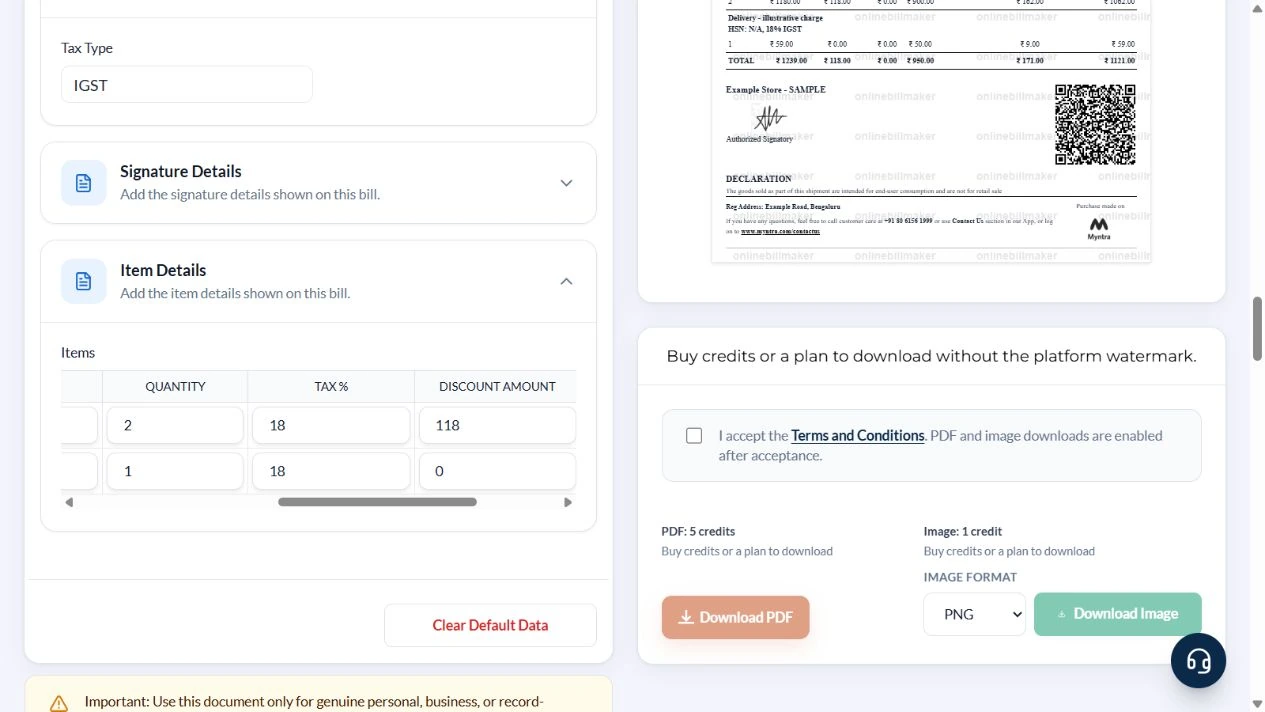
| Discount Amount | Currency reduction for the complete line. | ₹118 on the accessory line | Not a percentage and not ₹118 per unit. |
| Tax % / HSN/SAC | Entered tax rate and item classification. | 18% arithmetic assumption; classification blank | Use verified classification and rates for a real invoice. |
| Delivery item | A separately described charge entered with Add Row. | ₹59 × 1, no discount | There is no separate editable delivery-charge field in this layout. |
Follow the editor step by step
Work through these stages in order. The screenshots show the actual editor running on localhost with illustrative details. Open a screenshot at full size when you need to read a field label; compare the values with your own source record.
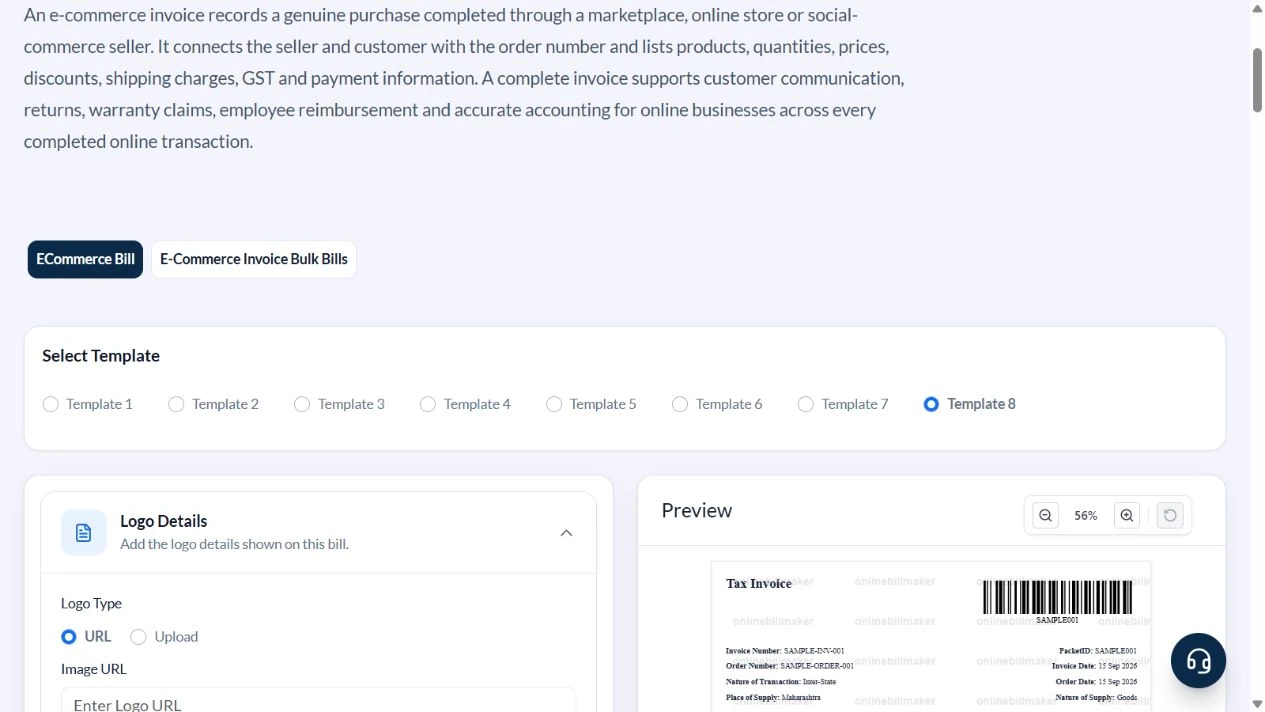
1. Choose Template 8
Under Select Template, choose Template 8. It shows a compact tax-inclusive table with gross amount, discount, taxable amount and tax breakup. Marketplace-style visuals are layout choices, not marketplace integration.
2. Connect the seller, customer and references
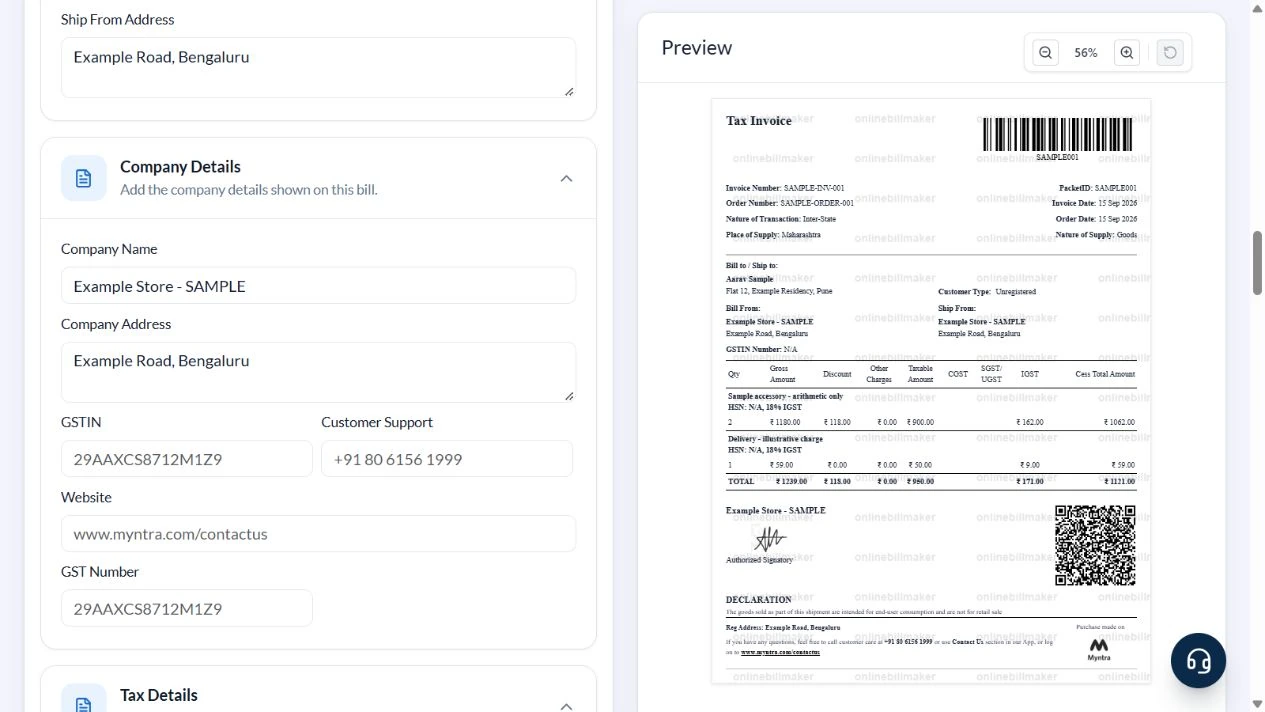
Open Invoice Details, Party Details and Company Details. Enter SAMPLE-INV-001, SAMPLE-ORDER-001 and the two dates. Set the seller and dispatch location to Example Store - SAMPLE in Bengaluru and Bill To to Aarav Sample in Pune. Choose Maharashtra for Place of Supply, Inter-State for Nature of Transaction and IGST in Tax Details for this illustrative scenario.
3. Enter the accessory and delivery rows
In Item Details, enter Sample accessory - arithmetic only, Price 590, Quantity 2, Tax 18 and Discount Amount 118. Clear the default HSN/SAC in this unclassified example. Use Add Row for Delivery - illustrative charge, Price 59, Quantity 1, Tax 18 and Discount Amount 0. The delivery rate is an arithmetic assumption, not a universal shipping-tax rule.
4. Check the ₹1,121 preview
The accessory gross amount is ₹1,180. After the ₹118 discount, ₹1,062 remains, comprising ₹900 taxable value and ₹162 tax. Delivery contributes ₹50 taxable value and ₹9 tax. The TOTAL row must show ₹950 taxable value, ₹171 tax and ₹1,121 payable.
5. Review download controls
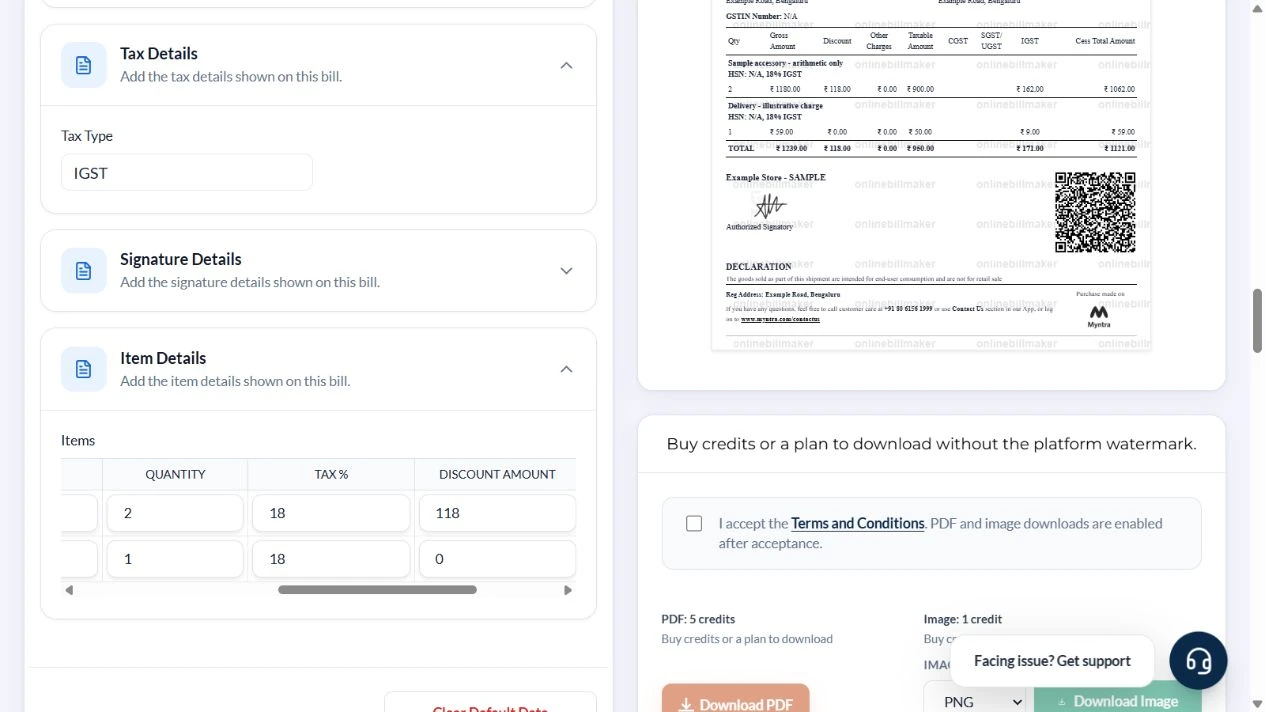
Below the preview, PDF and image controls show their credit costs. Terms acceptance and eligible paid access are required. This walkthrough inspected the controls but did not accept terms, purchase access or export a file.
After downloading: inspect the file before sharing
If you complete an eligible download, open the saved PDF or image and compare it with the preview. Check the first and last lines, long addresses, amounts, dates and any acknowledgement area. Confirm that every intended page is present and readable at the size the recipient will use. Keep the source record and payment evidence with the final file so the document can be reconciled later.
If you spot an error, return to the editor and correct the source field before generating the replacement. Use a clear file name with the document reference and period so an older draft is not accidentally sent as the final copy.
Tax-inclusive order example: ₹1,121
| Item | Basis | Result |
|---|---|---|
| Accessory gross | 2 × ₹590 | ₹1,180 |
| Accessory after discount | ₹1,180 − ₹118 | ₹1,062 |
| Accessory taxable value | ₹1,062 ÷ 1.18 | ₹900 |
| Accessory tax | ₹1,062 − ₹900 | ₹162 |
| Delivery | ₹59 ÷ 1.18 = ₹50; tax ₹9 | ₹59 |
| Invoice total | ₹950 taxable + ₹171 tax | ₹1,121 |
This is Template 8 arithmetic, using an assumed 18% rate for both lines. The discount is deducted once from the line gross. Adding 18% again to ₹1,062 would count tax twice. Actual product classification, delivery treatment and tax eligibility must be established separately.
How do you reconcile the amount paid?
For an ecommerce invoice calculation, review quantity multiplied by price, any supported discount and the delivery amount separately. An ecommerce invoice with GST needs the correct supply information and tax treatment from the actual transaction. Do not assume a marketplace settlement amount equals the customer invoice total, since different records can describe different flows. The worked example below shows only the editor’s entered transaction.
What should be checked in the saved PDF?
A useful ecommerce invoice format PDF should keep both long addresses and product descriptions readable. When learning how to create an ecommerce invoice, compare the final file with the preview and keep the source seller record. If an order changes, use the appropriate seller correction, cancellation or return process. Editing this independent record does not update a marketplace, establish a refund or create a tax credit note.
Troubleshooting and final checks
- Do not enter a percentage in Discount Amount. A value of 10 means ₹10 in this INR example.
- Check whether your chosen layout uses inclusive or exclusive prices before reusing numbers.
- Do not leave the default seller, signature or marketplace identity in a real record that they do not represent.
- Template 8 has no payment-status input; it cannot confirm prepaid payment or COD collection.
- The built-in QR or barcode is not evidence that a marketplace validated the order.
Editing and previewing are free. Downloads require sign-in and either an active plan or enough purchased credits: 5 credits for a PDF and 1 credit for an image. There are no free download credits. Free users see the platform watermark in the preview. Signed-in users with a credit balance or an active plan can choose a download format and preview without the watermark. Compare download credits and plans.
This editor arranges supplied details. It does not issue an invoice on behalf of a marketplace, validate GST registration or certify tax treatment. Use the seller-issued record where required.