Arrange a passenger, route and fare breakdown into an editable flight travel record. The template does not book a flight, validate a PNR or issue a ticket for travel. Keep passenger names, travel dates, route and booking references consistent with the original booking record. Review fare components separately from payment confirmations and optional service descriptions. This layout is useful for organising information or creating a clearly illustrative sample; any valid ticket, booking confirmation or change must still come from the airline or authorised travel provider. Start with the flight travel record and invoice template.
The record and the example used here
A flight record summarises entered itinerary and payment details. An airline-issued ticket establishes a booking with the carrier; a boarding pass relates to check-in and boarding. This tool supplies neither of those authorisations.
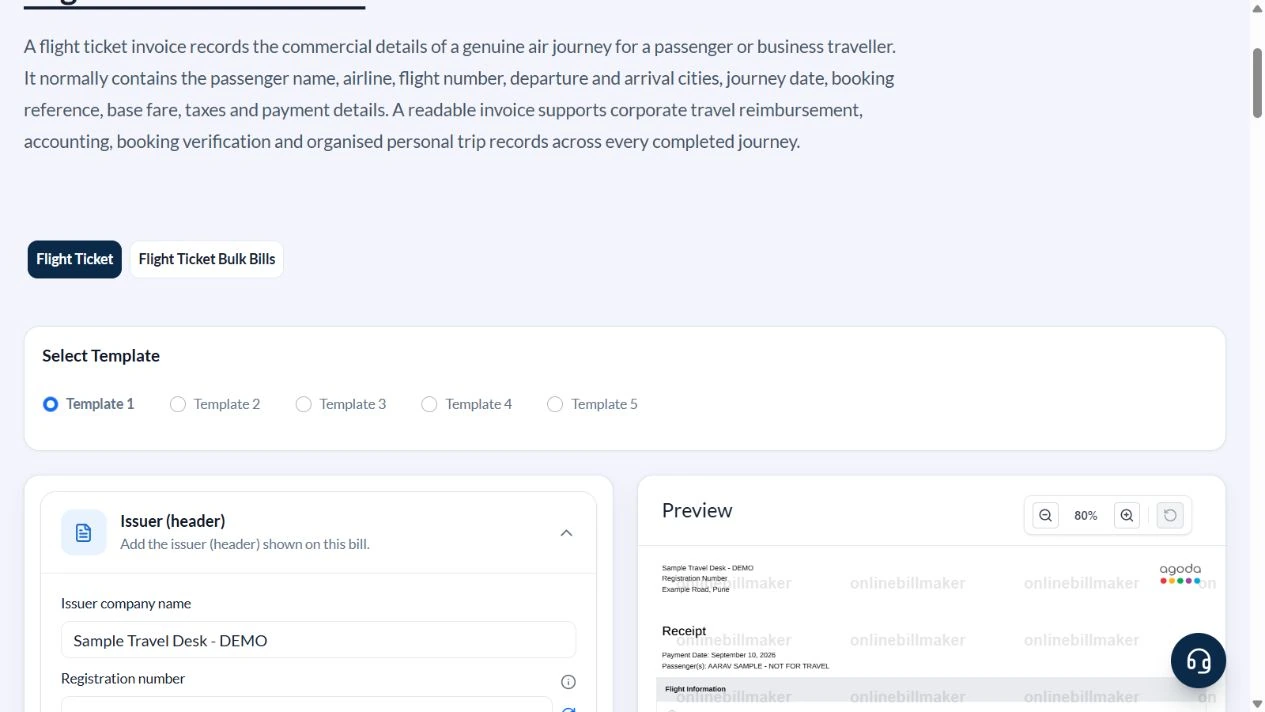
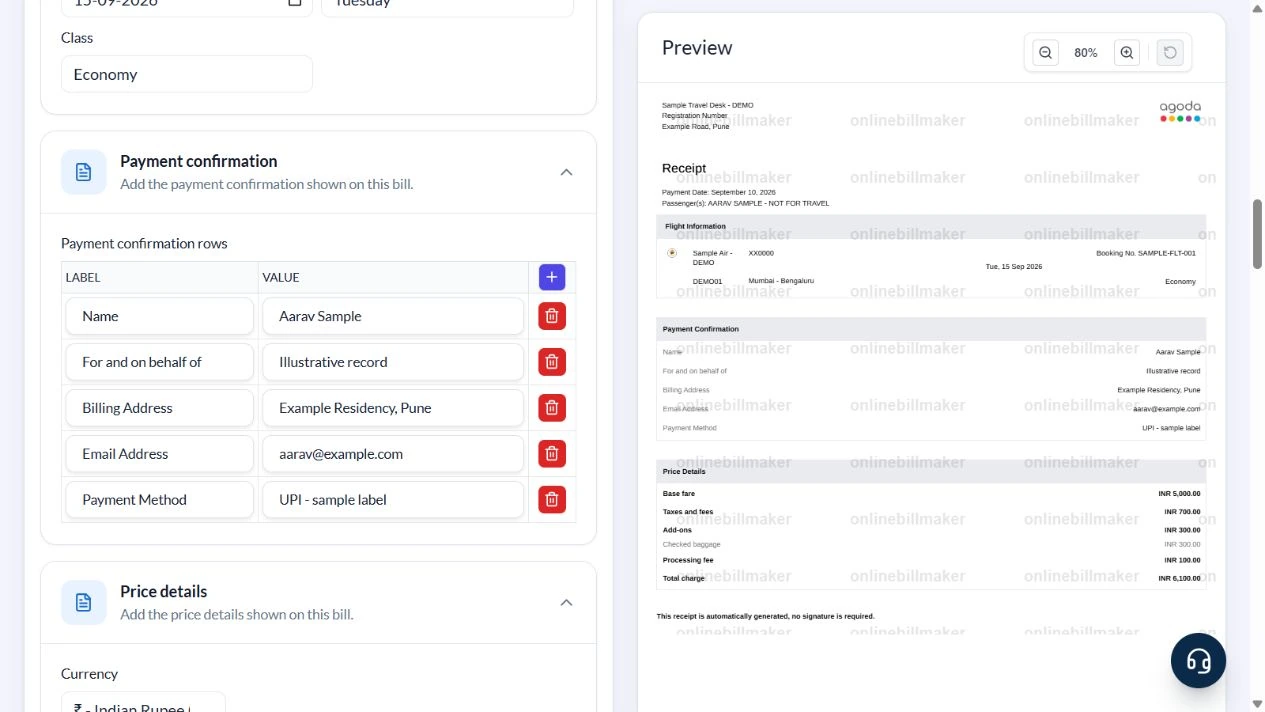
The demonstrated Template 1 uses Sample Travel Desk – DEMO, passenger AARAV SAMPLE – NOT FOR TRAVEL and fictional flight XX0000 from Mumbai to Bengaluru on Tuesday, 15 September 2026. Payment date is 10 September. PNR DEMO01 and booking SAMPLE-FLT-001 are sample references, not valid booking lookups.
Five layouts are available. Provider-style graphics may remain part of a layout even after the company name changes. They do not imply provider affiliation or validation.
How do you read a flight itinerary sample?
In a flight itinerary sample, follow the route in travel order and compare the flight date with the departure time. An example flight itinerary should make connections and the passenger name unambiguous. The screenshots demonstrate the editor with illustrative details; they do not document a real booking. Use the airline’s current itinerary for actual travel, especially when a schedule changes after the original ticket was issued.
Before you start: prepare and reconcile the details
Start from the airline or travel provider’s booking confirmation and identify each journey segment. A return trip may have different flight numbers, dates and terminals in each direction. Check passenger names character by character and retain the original record rather than using an edited copy to correct an airline booking.
Separate the fare charged from the methods used to settle it. A payment confirmation row may describe a transfer without being an additional fare component. Likewise, descriptive baggage or service text does not necessarily change the arithmetic. Compare the final preview with the fare and payment totals on the source confirmation.
Fields and sample values
| Field | Purpose | Sample value | When it applies |
|---|---|---|---|
| Issuer company name / address | Name the preparer shown on this record. | Sample Travel Desk – DEMO; Example Road, Pune | Do not leave another business’s default particulars. |
| Payment date / Passenger(s) | Date of payment record and traveller label. | 10 September 2026; AARAV SAMPLE – NOT FOR TRAVEL | Payment date can differ from departure date. |
| Airline / Flight no. / Route | Describe the journey. | Sample Air – DEMO; XX0000; Mumbai – Bengaluru | An entered flight number does not confirm a service. |
| PNR / Booking no. | Cross-reference the source booking when available. | DEMO01; SAMPLE-FLT-001 | Generated references are not validated by an airline. |
| Date / Day / Class | Set departure date, weekday and cabin label. | 15 September 2026; Tuesday; Economy | Check the Day dropdown separately from Date. |
| Payment confirmation rows | Editable labels for payer and payment information. | Aarav Sample; UPI – sample label | This table does not process or verify payments. |
| Price detail rows / Style | Separate billable charges from explanatory breakdowns. | Add-ons ₹300 Main line; baggage ₹300 Sub-line | Sub-lines are not added again to Total charge. |
Follow the editor step by step
Work through these stages in order. The screenshots show the actual editor running on localhost with illustrative details. Open a screenshot at full size when you need to read a field label; compare the values with your own source record.
1. Select Template 1
Open Flight Ticket and choose Template 1. Wait for Issuer (header), Receipt, Flight information, Payment confirmation and Price details to appear; other layouts use different fields.
2. Make the sample identity explicit
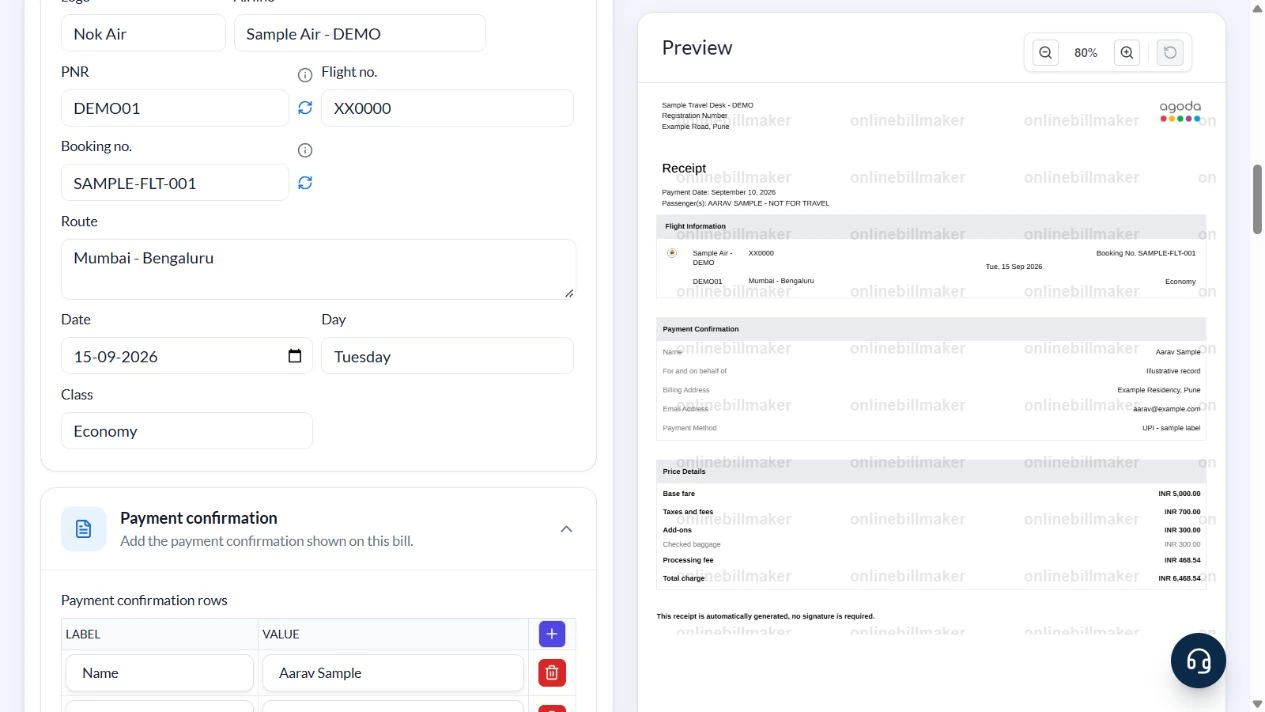
Enter Sample Travel Desk – DEMO and Example Road, Pune. Clear the registration number. In Receipt, use payment date 10 September 2026 and passenger AARAV SAMPLE – NOT FOR TRAVEL. In Flight information, enter the demo airline, flight XX0000, DEMO01, SAMPLE-FLT-001 and Mumbai – Bengaluru. Set 15 September 2026, Tuesday and Economy.
3. Enter fare components without double-counting
Open Price details. Use Base fare 5000, Taxes and fees 700, Add-ons 300 and Processing fee 100 as Main line entries. Keep Checked baggage 300 as Sub-line (muted), explaining the add-on already counted. Total charge (auto) becomes 6100.
4. Read the whole itinerary and payment summary
Replace Payment confirmation defaults with Aarav Sample, an illustrative address and aarav@example.com. Use UPI – sample label. Compare the passenger, route, date, references and ₹6,100 total in the preview. A provider graphic or a receipt heading does not turn it into an airline-issued document.
5. Inspect output choices
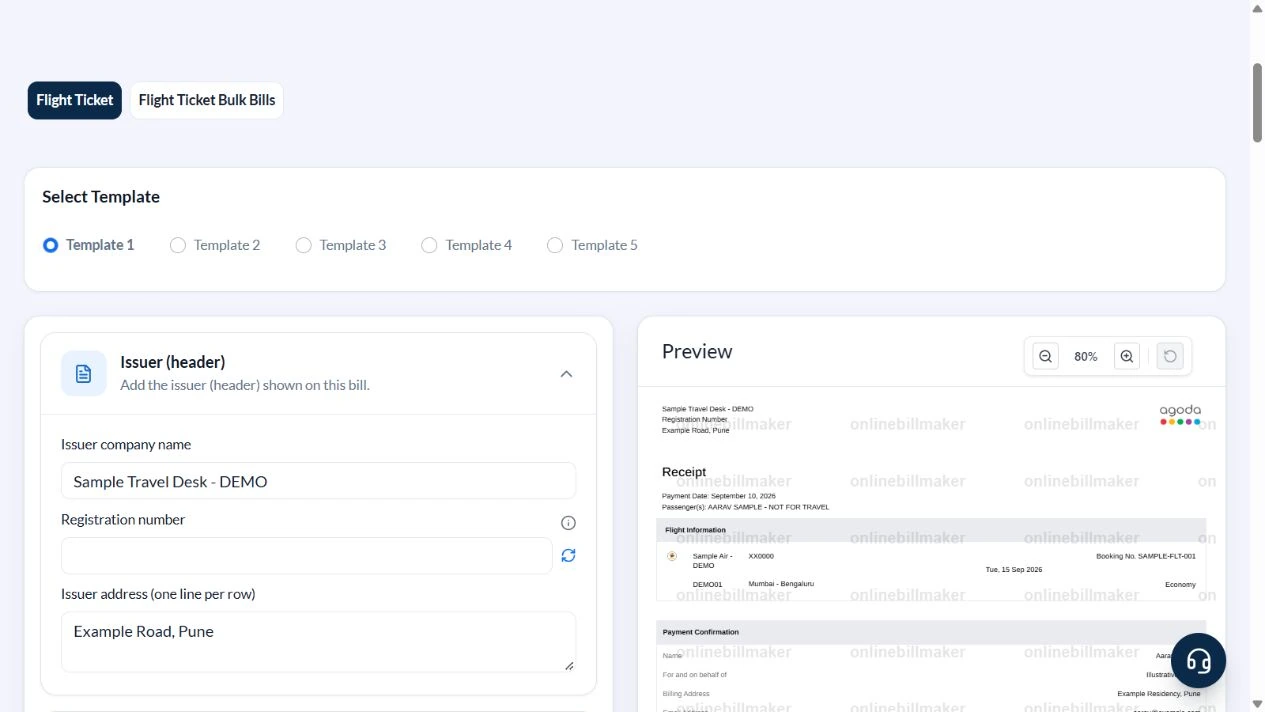
The page offers PDF and PNG, JPG or WEBP image output. The captured controls are before terms acceptance, with download buttons disabled. This walkthrough did not purchase access or inspect a downloaded file.
After downloading: inspect the file before sharing
If you complete an eligible download, open the saved PDF or image and compare it with the preview. Check the first and last lines, long addresses, amounts, dates and any acknowledgement area. Confirm that every intended page is present and readable at the size the recipient will use. Keep the source record and payment evidence with the final file so the document can be reconciled later.
If you spot an error, return to the editor and correct the source field before generating the replacement. Use a clear file name with the document reference and period so an older draft is not accidentally sent as the final copy.
Fare breakdown: ₹6,100 without duplicate baggage
| Item | Basis | Result |
|---|---|---|
| Base fare | Main line | ₹5,000 |
| Taxes and fees | Illustrative amount, not a universal rate | ₹700 |
| Add-ons | Main line | ₹300 |
| Checked baggage | Sub-line describing the same ₹300 add-on | Not added again |
| Processing fee | Main line | ₹100 |
| Total charge | ₹5,000 + ₹700 + ₹300 + ₹100 | ₹6,100 |
If baggage is changed to Main line while Add-ons remains ₹300, the same charge would be counted twice. Use sub-lines for breakdowns and main lines for distinct charges. These example amounts do not establish airline taxes or fees.
Which details need a second check?
The air ticket name format should remain consistent across the passenger and booking-style areas of the sample. Check the displayed city and airport labels as well as the date, since a familiar city name can still represent the wrong airport. An air ticket time format may use a different display convention from the entry field; compare what is printed rather than assuming the typed text appears unchanged.
How should a demonstration copy be shared?
Before sharing an air ticket sample PDF, check that it remains identifiable as a sample even when printed or viewed separately from this guide. A plane ticket sample can teach layout and field placement without implying that a seat has been reserved. Keep booking and payment evidence from a real provider separate. If someone needs an actual ticket, direct them to the airline or booking provider that can issue and verify it.
Troubleshooting and final checks
- Choose the layout first; template switches can replace defaults and field groups.
- Check departure weekday as well as the date.
- Keep payment date separate from travel date.
- Do not count a subtotal and its supporting sub-line as two charges.
- Do not use the preview as proof that an airline confirmed a booking.
Editing and previewing are free. Downloads require sign-in and either an active plan or enough purchased credits: 5 credits for a PDF and 1 credit for an image. There are no free download credits. Free users see the platform watermark in the preview. Signed-in users with a credit balance or an active plan can choose a download format and preview without the watermark. Compare download credits and plans.
This editable record is for planning, demonstrations and personal organisation. It is not valid for airport access, identity checks or travel.