Prepare a readable record of a mobile recharge using the original operator transaction. Check the service identifier, plan, date and paid amount; the editor does not activate or verify a recharge. Copy the mobile number, transaction reference and plan details carefully, and distinguish the recharge date from the invoice date. Compare the amount, any discount and the selected tax calculation with the operator’s confirmation. Keep the original message or provider receipt for verification; a formatted recharge record cannot confirm activation, plan benefits or the success of a payment. Start with the recharge bill generator for mobile payment records.
The record and the example used here
A recharge record connects a payment to a mobile service and a plan. The original operator confirmation remains the source for validity, data allowance and whether the recharge succeeded.
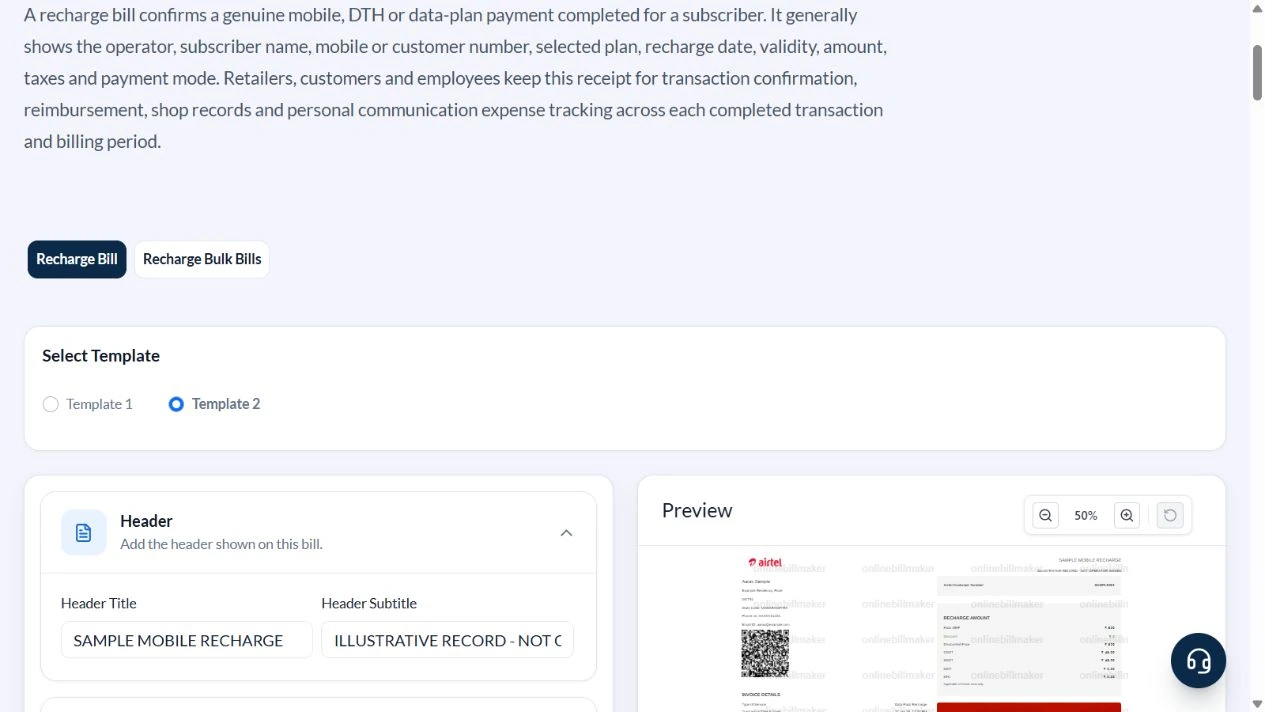
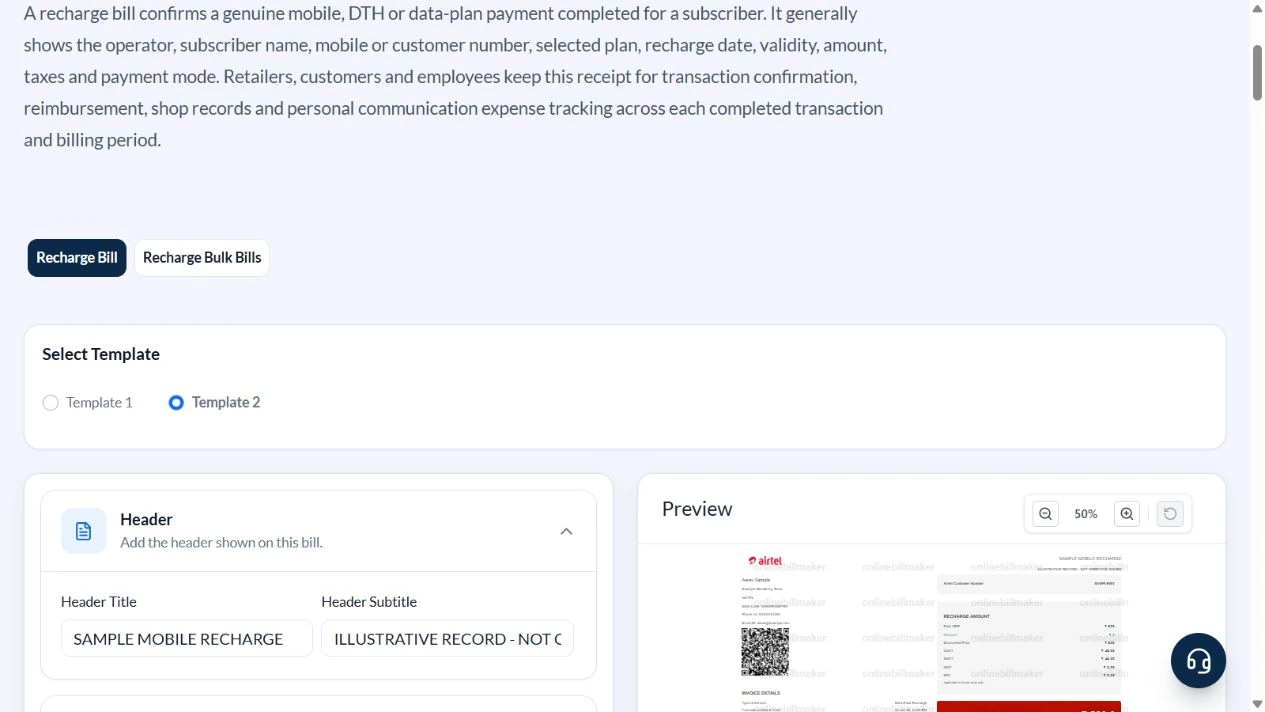
This walkthrough uses Template 2 of two layouts. The sample is labelled SAMPLE MOBILE RECHARGE and ILLUSTRATIVE RECORD – NOT OPERATOR ISSUED. Aarav Sample has the masked identifier XXXXXX1234; the transaction is SAMPLE-RECH-001 on 21 January 2026 at 12:33.
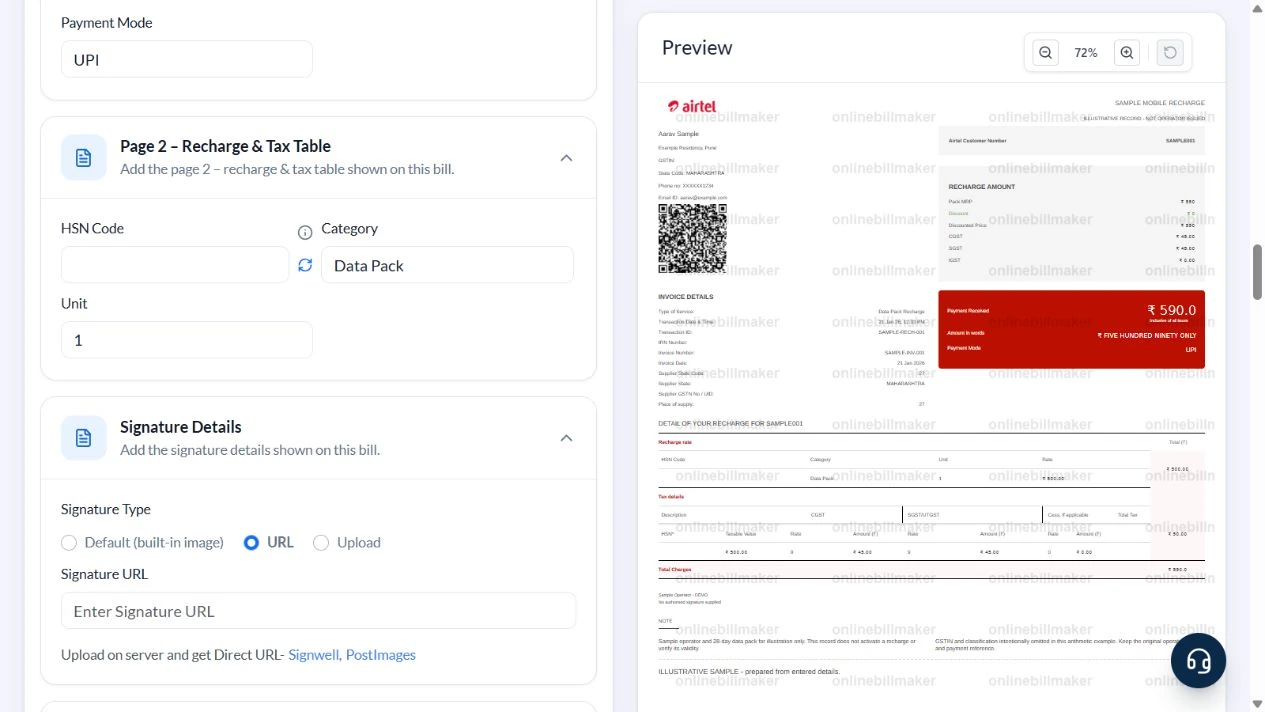
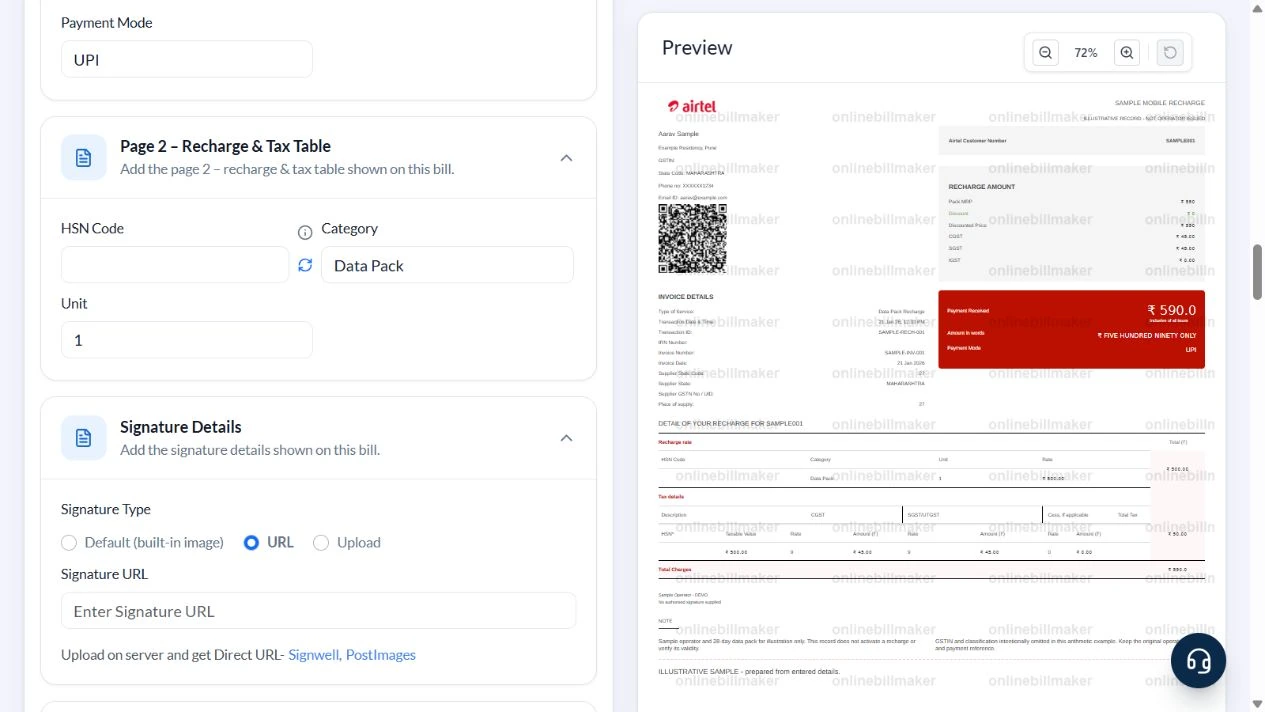
The entered ₹590 is GST-inclusive. An assumed 18% rate illustrates the arithmetic only: taxable amount ₹500, CGST ₹45 and SGST ₹45. GSTIN and classification are intentionally blank, so this is an incomplete tax-invoice sample.
Where should an original recharge receipt come from?
For an Airtel prepaid recharge receipt, Jio online prepaid recharge receipt download or another operator’s issued acknowledgement, use the relevant provider or payment service. This editor cannot retrieve those records. The same distinction applies to a Vodafone recharge receipt or BSNL recharge receipt: an independent layout organises user-entered facts and does not authenticate the operator’s transaction.
Before you start: prepare and reconcile the details
A recharge receipt should connect the service identifier with the actual successful transaction. Check the number digit by digit before entering the plan or amount. For a public example, use illustrative details instead of exposing a real customer number or transaction reference.
Read whether the operator’s amount is GST inclusive before selecting a tax mode. A recharge discount may represent a reduction in what was paid rather than a change to the plan’s advertised value. Keep those figures understandable and compare any second-page tax table with the main amount so the two pages do not contradict one another.
Fields and sample values
| Field | Purpose | Sample value | When it applies |
|---|---|---|---|
| Phone Number / Airtel Customer Number | Connect the record to the service account. | XXXXXX1234; SAMPLE001 | The provider-specific label does not establish an operator integration. |
| Type of Transaction / Transaction Number | Describe and reference the recharge. | Data Pack Recharge; SAMPLE-RECH-001 | Copy an actual successful transaction reference for a real record. |
| Transaction Date / Invoice Date | Separate payment time from document date. | 21 January 2026; 12:33 | Review the printed values, including the time. |
| Recharge Amount (GST Inclusive) / GST % | Split the entered total into base and tax. | ₹590; assumed 18% | Do not add the calculated ₹90 to ₹590 again. |
| Discount / Payment Method | Record an adjustment and payment label. | 0; UPI | No discount is applied in this example. |
| Page 2 Tax Table | Describe the service line. | Data Pack; unit 1 | HSN/SAC is left blank intentionally; use an applicable classification for a real tax document. |
| Notes Left / Notes Right | Explain plan and record limitations. | Sample operator; 28-day data pack | Plan validity is typed text, not a live account check. |
| Signature Type / Signature URL | Control an optional signature image. | URL selected; URL empty | The sample supplies no authorised signature. |
Follow the editor step by step
Work through these stages in order. The screenshots show the actual editor running on localhost with illustrative details. Open a screenshot at full size when you need to read a field label; compare the values with your own source record.
1. Select the two-page recharge layout
Choose Template 2. Replace the header with SAMPLE MOBILE RECHARGE and the subtitle with ILLUSTRATIVE RECORD – NOT OPERATOR ISSUED. The built-in provider graphic is a layout element, not evidence of affiliation.
2. Enter a masked service identifier and references
Use Aarav Sample, Example Residency, Pune, XXXXXX1234 and aarav@example.com. Enter SAMPLE001 as the customer number, Data Pack Recharge as the type, SAMPLE-RECH-001 as the transaction number and SAMPLE-INV-001 as the invoice. The example uses 21 January 2026 and 12:33; GSTIN, GSTN and IRN are empty.
3. Enter ₹590 as the inclusive amount
Set Recharge Amount (GST Inclusive) to 590, GST % to 18, Discount to zero and Payment Method to UPI. Set the supplier and place-of-supply state to Maharashtra, code 27. On Page 2, use Data Pack and unit 1; leave the sample classification blank.
4. Review both pages and the plan note
The preview shows ₹500 taxable amount, ₹45 CGST, ₹45 SGST and ₹590 total. Use the notes to explain the illustrative 28-day data pack and retain the original operator receipt. Select URL for Signature Type and clear its URL. A default QR graphic may remain when QR Image URL is cleared; it is not verified payment evidence.
5. Check output choices
Review the PDF and image controls below the preview. This walkthrough did not make a purchase or inspect an exported recharge document.
After downloading: inspect the file before sharing
If you complete an eligible download, open the saved PDF or image and compare it with the preview. Check the first and last lines, long addresses, amounts, dates and any acknowledgement area. Confirm that every intended page is present and readable at the size the recipient will use. Keep the source record and payment evidence with the final file so the document can be reconciled later.
If you spot an error, return to the editor and correct the source field before generating the replacement. Use a clear file name with the document reference and period so an older draft is not accidentally sent as the final copy.
₹590 includes the assumed 18% tax
| Item | Basis | Result |
|---|---|---|
| Inclusive recharge amount | Entered total | ₹590 |
| Taxable amount | ₹590 ÷ 1.18 | ₹500 |
| Combined tax | ₹590 − ₹500 | ₹90 |
| CGST / SGST | ₹90 ÷ 2 | ₹45 each |
| Amount paid | ₹500 + ₹45 + ₹45 | ₹590 |
These numbers demonstrate an inclusive amount, unlike a bill that adds tax to a net plan price. The 28-day validity note is descriptive; the editor does not calculate an expiry date or activate the plan.
How do you reconcile a recharge transaction?
A recharge receipt example should identify which transaction supplied the amount and date. Compare the mobile number or customer reference, then check any entered discount before reviewing the tax breakdown. A prepaid mobile recharge receipt can be a useful organisational copy, but a typed transaction ID does not verify payment. If an operator or payment app reports a reversal, retain that source evidence and correct your records accordingly.
How do you check the saved recharge PDF?
When learning how to create a recharge receipt, inspect all printed pages rather than only the first preview area. A mobile recharge receipt PDF should show the correct reference, date and amount without exposing unnecessary personal information. Compare the tax table with the summary if both are printed. The final copy remains a record of entered information and does not establish service activation or reimbursement acceptance.
Troubleshooting and final checks
- Do not enter the base price in the GST-inclusive amount field.
- Keep an operator transaction reference distinct from a locally chosen invoice number.
- Check both pages for default customer, supplier, signature or QR content.
- Do not copy an assumed tax rate or blank classification into a real tax invoice.
Editing and previewing are free. Downloads require sign-in and either an active plan or enough purchased credits: 5 credits for a PDF and 1 credit for an image. There are no free download credits. Free users see the platform watermark in the preview. Signed-in users with a credit balance or an active plan can choose a download format and preview without the watermark. Compare download credits and plans.
The output is an entered record, not an operator-issued receipt or a verified service activation.