Prepare a local consignment record with the sender, recipient, route and goods details. This layout shows goods worth; freight and extra charges are not calculated by that field. Identify the consignor, consignee, vehicle, pickup and delivery locations, then enter the goods description, package count and weight on a consistent basis. Review the declared goods value separately from any freight evidence. The local record helps organise shipment information; transport booking, delivery confirmation and any required official movement documents must be handled through their respective processes. Start with the transportation record generator for consignment details.
The record and the example used here
The existing Transportation Bill page produces a Consignment Note layout. It records the movement details of goods; it does not contain a dedicated freight, loading-charge or tax-calculation table.
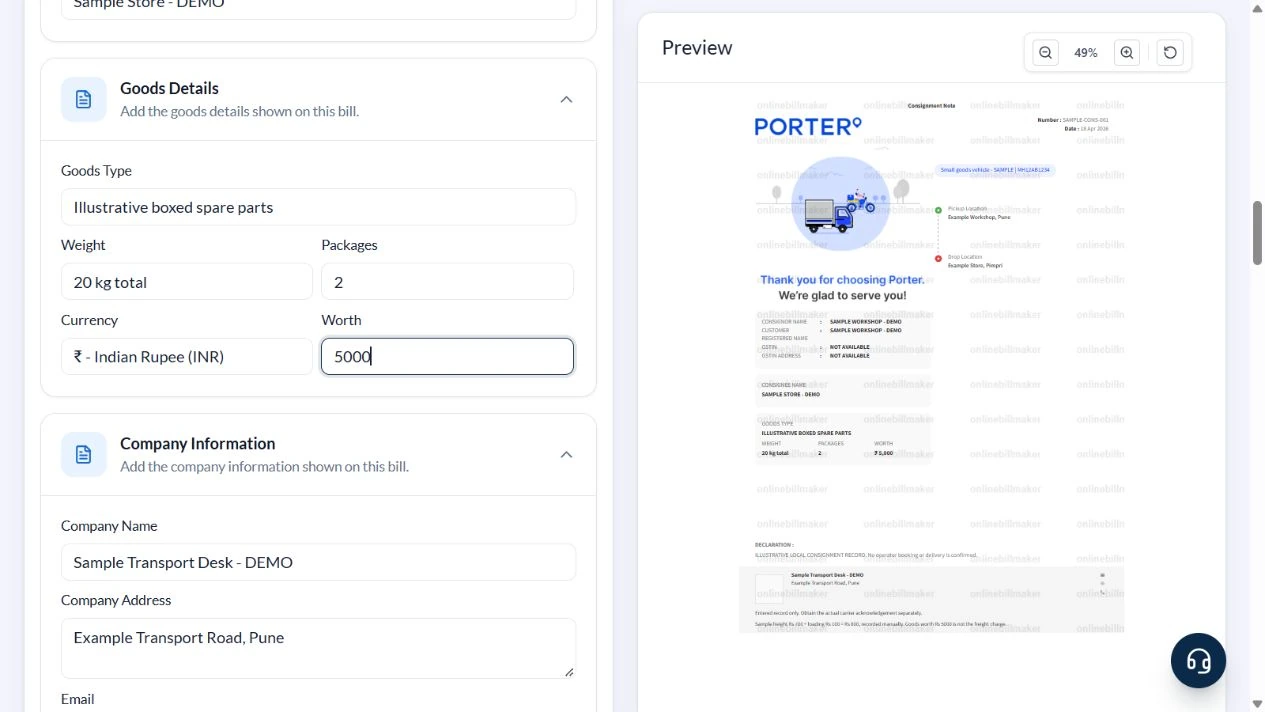
The sample reference SAMPLE-CONS-001 is dated 18 April 2026. Sample Workshop – DEMO sends illustrative boxed spare parts from Example Workshop, Pune to Sample Store – DEMO at Example Store, Pimpri. Two packages weigh 20 kg in total and have entered Worth ₹5,000.
The separate illustrative transport charge is ₹700 freight plus ₹100 loading, ₹800 total, manually written in the footer. The ₹5,000 goods worth is not the amount charged for transport. Built-in provider graphics remain part of the design and do not indicate an operator booking.
How do you distinguish freight charges from goods value?
A freight invoice format concerns the amount charged for transporting goods, while the consignment’s worth describes the goods themselves. Do not enter one into a field intended for the other. A freight bill template must have the necessary charge fields for the transaction. The illustrated editor is checked as a consignment record, so review its actual output rather than assuming it calculates freight from package weight or distance.
Before you start: prepare and reconcile the details
Confirm who sends the goods and who receives them, then check both addresses against the actual movement. A registered customer may be different from the consignor or consignee. Keep these roles distinct and use the consignment reference to link the shipment with its invoice, packing list and transport arrangement.
Packages, weight and goods worth describe the consignment; they do not all calculate a transport charge. Specify the weight unit and whether the value is a declared goods value. Preserve the carrier’s freight invoice separately. If a vehicle or route changes, follow the actual transport and statutory update process rather than assuming that editing this copy updates other records.
Fields and sample values
| Field | Purpose | Sample value | When it applies |
|---|---|---|---|
| Consignment Number / Date | Reference the local movement record. | SAMPLE-CONS-001; 18 April 2026 | A generated number does not retrieve a carrier booking. |
| Vehicle Type / Vehicle Number | Identify the recorded vehicle. | Small goods vehicle – SAMPLE; MH12AB1234 | No registration check occurs. |
| Pickup Location / Drop Location | Describe both route endpoints. | Example Workshop, Pune; Example Store, Pimpri | This is not a distance or route-price calculation. |
| Consignor / Customer Registered Name / Consignee | Separate sender, booking customer and recipient. | Sample Workshop – DEMO; Sample Store – DEMO | These parties may differ in a real shipment. |
| Goods Type / Weight / Packages | Describe the goods and handling units. | Boxed spare parts; 20 kg total; 2 packages | Weight and package count are independently entered. |
| Worth | State the goods value. | ₹5,000 | Do not enter the ₹800 freight charge here. |
| Company Information / Declaration Text | Identify the recorder and document status. | Sample Transport Desk – DEMO; local record only | Replace operator-issued claims that do not apply. |
| GST Footer Information | Editable footer text in this layout. | ₹700 freight + ₹100 loading = ₹800, manually recorded | This sample repurposes the text area; it is not an automatic tax or freight calculation. |
Follow the editor step by step
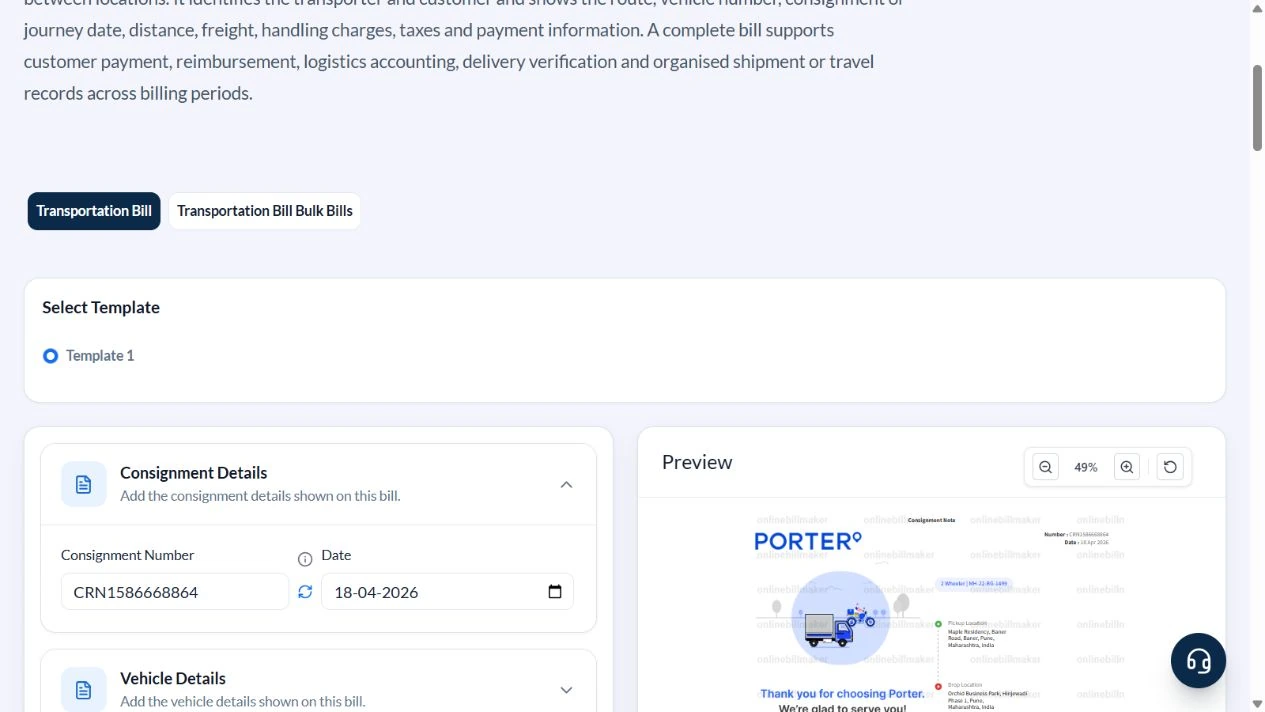
Work through these stages in order. The screenshots show the actual editor running on localhost with illustrative details. Open a screenshot at full size when you need to read a field label; compare the values with your own source record.
1. Open the consignment-note layout
Select Template 1. Expand Vehicle Details, Route Details, Consignor & Consignee, Goods Details, Company Information, Footer Details and Barcode Details.
2. Enter the sender, recipient and route
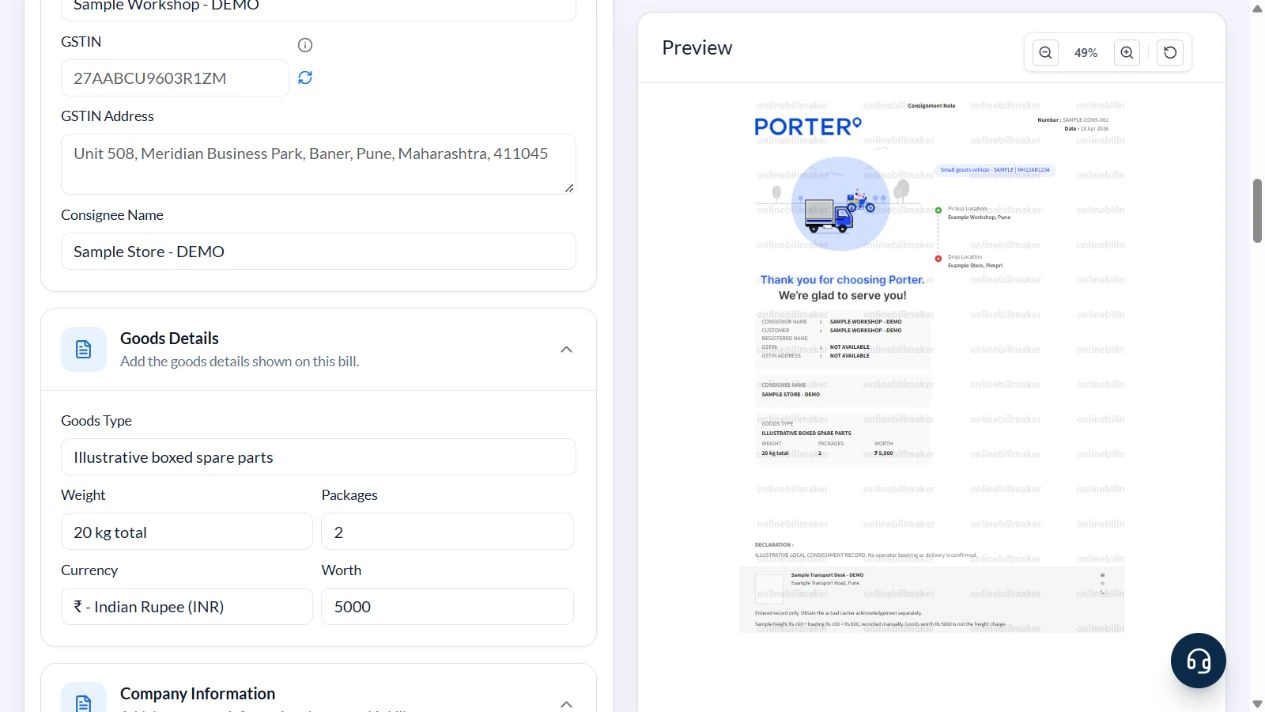
Use SAMPLE-CONS-001, 18 April 2026, Small goods vehicle – SAMPLE and MH12AB1234. Set the pickup and drop to the two example business locations. Use Sample Workshop – DEMO as consignor and registered customer, and Sample Store – DEMO as consignee. Clear GSTIN and GSTIN Address for the sample.
3. Describe the goods separately from freight
Enter Illustrative boxed spare parts, Weight 20 kg total, Packages 2 and Worth 5000. Identify Sample Transport Desk – DEMO and Example Transport Road, Pune in Company Information, clearing unused contacts.
4. Replace default declarations and review
State ILLUSTRATIVE LOCAL CONSIGNMENT RECORD. No operator booking or delivery is confirmed. in Declaration Text. Clear Terms URL. Use an entered-record notice and write the manual ₹700 freight plus ₹100 loading breakdown in GST Footer Information. Choose URL under Barcode/QR Code Type and clear Barcode Image URL. Check route, packages and ₹5,000 goods worth.
5. Inspect the output stage
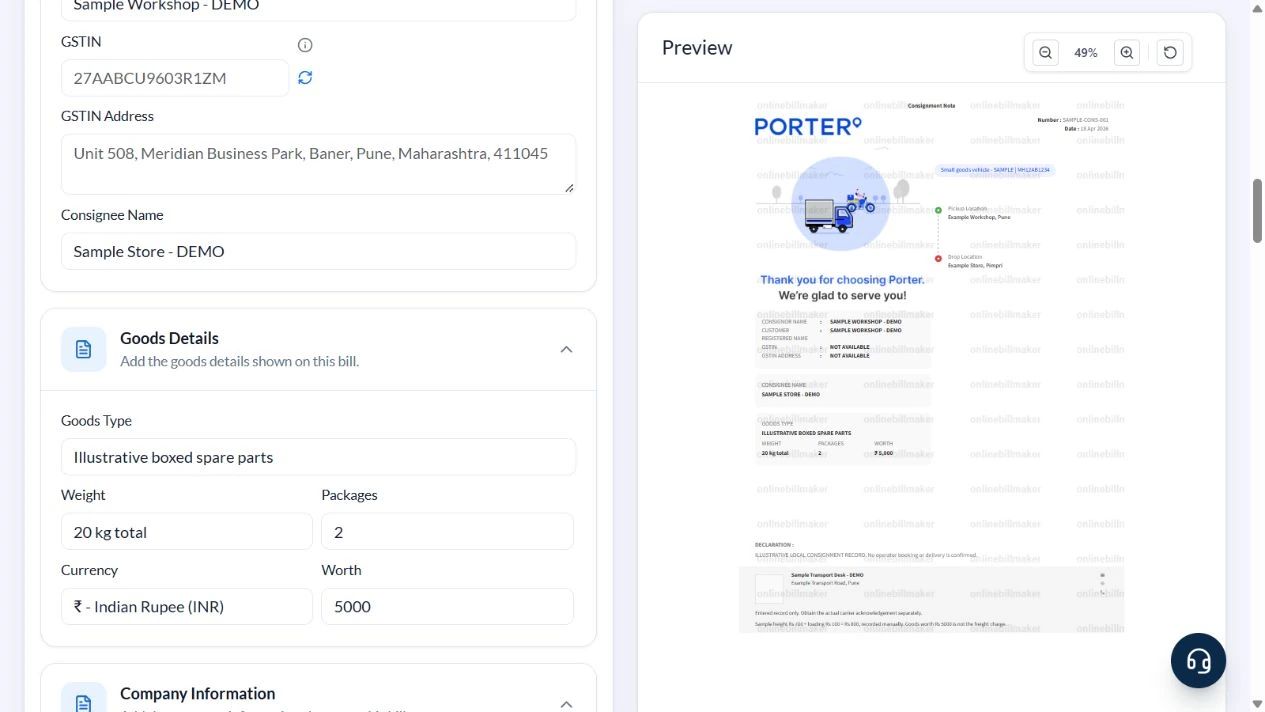
Review PDF and image controls. The walkthrough did not purchase access or inspect a downloaded consignment document.
After downloading: inspect the file before sharing
If you complete an eligible download, open the saved PDF or image and compare it with the preview. Check the first and last lines, long addresses, amounts, dates and any acknowledgement area. Confirm that every intended page is present and readable at the size the recipient will use. Keep the source record and payment evidence with the final file so the document can be reconciled later.
If you spot an error, return to the editor and correct the source field before generating the replacement. Use a clear file name with the document reference and period so an older draft is not accidentally sent as the final copy.
Goods worth and freight are different amounts
| Item | Basis | Result |
|---|---|---|
| Goods | Two packages, total 20 kg | Entered value ₹5,000 |
| Freight | Separate manually recorded charge | ₹700 |
| Loading | Separate manually recorded charge | ₹100 |
| Transport charge | ₹700 + ₹100 | ₹800 |
| Worth field | Value of goods only | ₹5,000 |
The editor does not multiply 20 kg by a tariff or sum the footer charges. Use an itemised general or appropriate tax invoice when the transport charge needs a calculated billing table, and retain the carrier’s actual consignment acknowledgement.
How should a transport record identify the movement?
A consignment note should make the sender, recipient and route unambiguous. In a truck transport bill format, compare the vehicle number with the movement record and check the package and weight units. A logistics invoice format may require additional commercial details that a simple consignment layout does not include. Keep any separate delivery or carrier acknowledgement connected by the actual reference number.
How do you check a sample before using the layout?
A sample transport bill format is useful for checking which fields print and which remain form-only. Compare the example’s route and goods details between the form and preview. A blank transport bill format should never retain a sample declaration that does not describe the shipment. Review the final PDF with the source records, and complete any separate carrier or statutory process that the movement requires.
Troubleshooting and final checks
- Do not use Worth as a freight field.
- Do not assume package count multiplies weight or value.
- Remove default operator declarations, registration details and terms links that are not yours.
- A local consignment note is not a portal-issued e-way bill or proof of delivery.
Editing and previewing are free. Downloads require sign-in and either an active plan or enough purchased credits: 5 credits for a PDF and 1 credit for an image. There are no free download credits. Free users see the platform watermark in the preview. Signed-in users with a credit balance or an active plan can choose a download format and preview without the watermark. Compare download credits and plans.
The record does not issue a carrier booking, validate an e-way bill or establish delivery or payment.