Prepare a workshop bill that separates the work performed from the parts supplied. Identify the vehicle and repair order, state quantities and check each discount before reviewing the total. Use the garage, customer, registration and repair-order details to identify the job, then list parts and labour separately with quantities and rates. Check discounts and the tax fields supported by the layout before reviewing the total. A useful vehicle service bill explains what was replaced or repaired and keeps the service date, mileage and future-service notes consistent. Start with the vehicle maintenance bill generator for parts and labour.
The record and the example used here
A maintenance bill should explain what happened to the vehicle, when it was serviced and how the workshop arrived at the charge. Parts and labour need clear descriptions even when both appear in one table.
This walkthrough uses the visible Template 6, headed Vehicle Service Invoice. Sample Auto Care – DEMO bills Aarav Sample for sample hatchback MH12AB1234 at 20,000 km. Invoice SAMPLE-SERVICE-001 and repair order SAMPLE-RO-001 are dated 2 October 2026.
The example charges ₹800 for one service job and ₹600 for two wiper blades, less a 10% parts discount of ₹60. Tax Rate is zero only for this arithmetic demonstration; the example deliberately omits GSTIN and HSN/SAC and is not a complete tax invoice.
How do you read a car repair invoice example?
A car repair invoice example should distinguish the vehicle and job reference before explaining the charge lines. Compare the listed parts with the actual service record, then check labour quantities and rates separately. An auto repair invoice example can be mathematically correct while identifying the wrong registration or job, so review those references before accepting the total. The example here uses illustrative service details.
Before you start: prepare and reconcile the details
Start with the approved work or repair order, then compare it with the work actually completed. A quoted replacement may have been declined or changed after inspection. Use the part number and description to identify supplied parts, while labour lines should describe the service rather than looking like another stocked item.
Check quantity and rate separately for parts and labour. A percentage discount applies differently from a fixed rupee reduction, so review the field label before entering it. The odometer and next-service figures are descriptive records, not proof that work was performed or a calculation of labour charges. Keep any warranty terms and replaced-part notes with the workshop file.
Fields and sample values
| Field | Purpose | Sample value | When it applies |
|---|---|---|---|
| Service Center / Garage Name / Address | Identify the workshop. | Sample Auto Care – DEMO; Example Service Road, Pune | Clear unrelated default contact and registration details. |
| Customer Name / Customer ID | Connect the job to the customer. | Aarav Sample; SAMPLE001 | The ID is entered, not retrieved from a garage system. |
| Registration Number / Model / Mileage | Identify the serviced vehicle and odometer reading. | MH12AB1234; Sample hatchback; 20,000 km | Mileage is the odometer reading, not a billable distance. |
| Invoice Number / RO Number / dates | Keep invoice and repair-order references distinct. | SAMPLE-SERVICE-001; SAMPLE-RO-001; 2 October 2026 | The demonstrated preview prints dates; review times separately if needed. |
| Item Type / Part No / Description | Separate parts from work. | Labour LAB01; Parts PART01 | Job Name is a grouping input; use a complete Description in the visible row. |
| Qty / Unit Price / Discount % | Calculate the net line value. | 2 × ₹300 less 10% = ₹540 | Discount is a percentage, not rupees. |
| Tax Rate (%) | Set the applicable bill-level rate. | 0 for this worked arithmetic | Different tax treatment may require another layout. |
| Next Serv. Due / Next Serv. Kms | Optional future service note. | 2 November 2026; 22,000 km in the example | These are entered assumptions, not manufacturer advice or automatic predictions. |
Follow the editor step by step
Work through these stages in order. The screenshots show the actual editor running on localhost with illustrative details. Open a screenshot at full size when you need to read a field label; compare the values with your own source record.
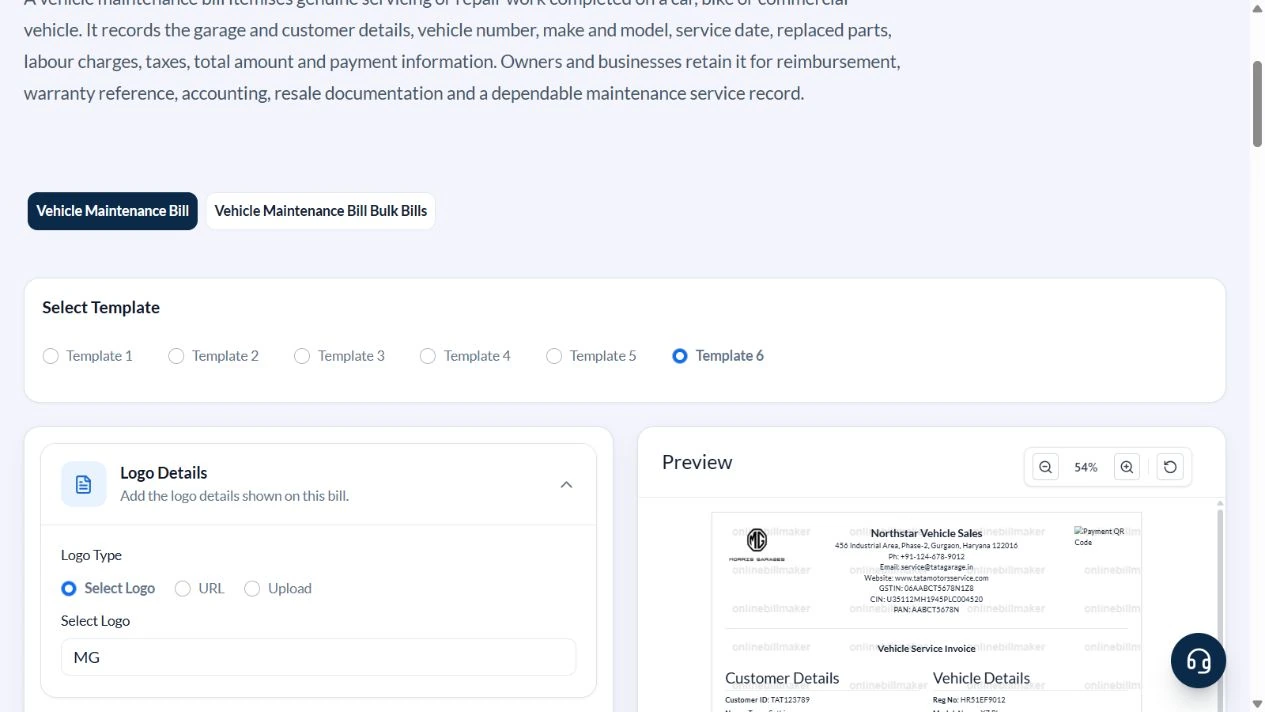
1. Select the vehicle service layout
Choose the visible Template 6. Its Service Details section retains the label Service Details (Template 3), but the preview is headed Vehicle Service Invoice. Choose Select One under Select Logo for the sample.
2. Identify the workshop, vehicle and service record
Enter Sample Auto Care – DEMO, Example Service Road, Pune, Aarav Sample and Example Residency, Pune. Use MH12AB1234, Sample hatchback, Illustrative service record, Silver and Mileage 20000. Clear the default VIN, contact, GST, CIN, PAN, payment QR and bank details. Set SAMPLE-RO-001 and SAMPLE-SERVICE-001 with 2 October 2026 dates.
3. Separate labour and parts
Keep two rows. Use Labour, LAB01, Service labour – one job, Qty 1, Unit Price 800, Discount % 0; then Parts, PART01, Wiper blade – one piece, Qty 2, Unit Price 300, Discount % 10. Leave classification blank for this sample. In Tax Details set Tax Rate (%) to zero.
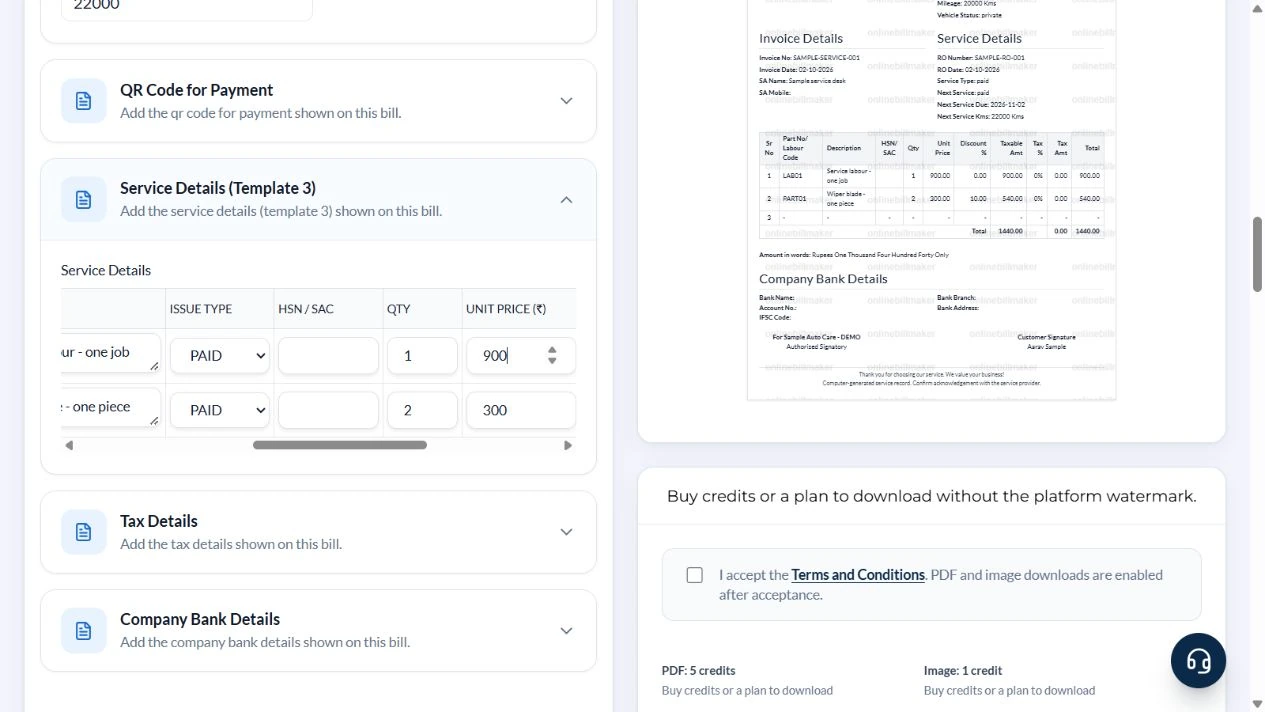
4. Review the ₹1,340 invoice
Check both line totals, the ₹1,340 total and amount in words. The example’s next-service note is manually set to 2 November 2026 and 22,000 km; replace it with actual workshop advice or omit it where supported. Empty logo and QR positions are placeholders, not verified credentials.
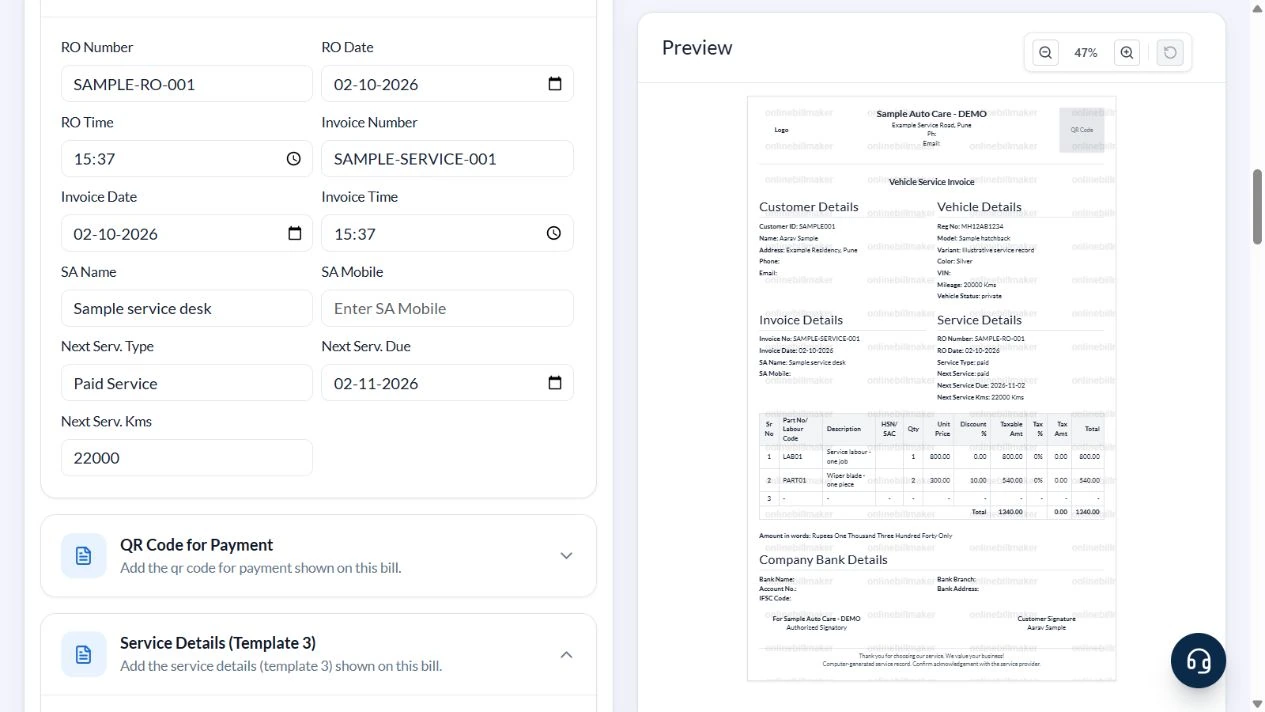
5. Inspect output access
PDF and image controls are below the invoice. No purchase or exported-file inspection was performed for this walkthrough.
After downloading: inspect the file before sharing
If you complete an eligible download, open the saved PDF or image and compare it with the preview. Check the first and last lines, long addresses, amounts, dates and any acknowledgement area. Confirm that every intended page is present and readable at the size the recipient will use. Keep the source record and payment evidence with the final file so the document can be reconciled later.
If you spot an error, return to the editor and correct the source field before generating the replacement. Use a clear file name with the document reference and period so an older draft is not accidentally sent as the final copy.
Labour plus discounted parts
| Item | Basis | Result |
|---|---|---|
| Service labour | 1 job × ₹800 | ₹800 |
| Wiper blades before discount | 2 pieces × ₹300 | ₹600 |
| Parts discount | ₹600 × 10% | ₹60 |
| Net parts charge | ₹600 − ₹60 | ₹540 |
| Invoice total | ₹800 + ₹540; sample tax zero | ₹1,340 |
Enter 10, not 60, in Discount % for the parts row. Keep the percentage between zero and 100. This layout uses a single tax-rate setting; it is not a parts-classification engine.
How should a garage describe the work?
A mechanic shop invoice should explain each service or part in enough detail to match the job record. An auto mechanic invoice template can include part references, but those entries do not validate the installed product or warranty. Keep an estimate distinct from work actually billed. If a detailed inspection or approval is needed, retain that separate document instead of implying that the invoice alone records it.
What should be checked before filing the service bill?
For a car maintenance bill, compare the vehicle, service date, mileage and final amount with the garage-issued original. An automotive repair invoice should keep any discount and tax understandable rather than combining them into an unexplained adjustment. Inspect the saved file after downloading, and retain payment and warranty evidence where relevant. A correction to a record should not be treated as proof that additional work occurred.
Troubleshooting and final checks
- Do not enter a rupee discount in the percentage column.
- Check that each part is labelled as Parts and each service as Labour.
- Remove old bank, QR and vehicle identifiers from defaults.
- Do not describe the next-service date as an automatically calculated maintenance schedule.
Editing and previewing are free. Downloads require sign-in and either an active plan or enough purchased credits: 5 credits for a PDF and 1 credit for an image. There are no free download credits. Free users see the platform watermark in the preview. Signed-in users with a credit balance or an active plan can choose a download format and preview without the watermark. Compare download credits and plans.
The generator does not verify repairs, warranties, service schedules or vehicle ownership.